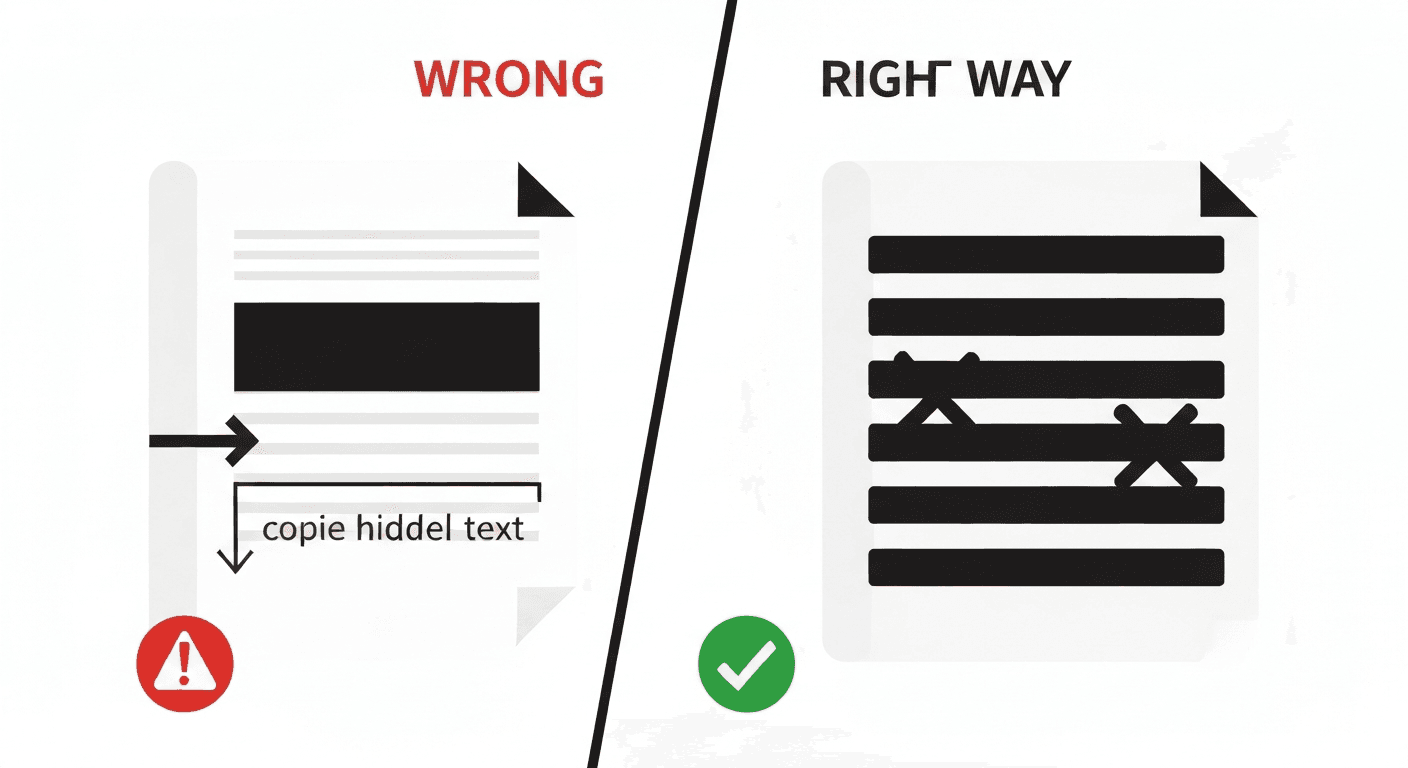
Redaction is not the same as drawing a black box over text in a PDF editor. If you simply add a black rectangle on top of sensitive text, the original text is still in the file — anyone can copy and paste it, or remove the rectangle.
True redaction permanently removes the underlying text data. Here's how to do it correctly.
The mistake that causes data breaches
A surprisingly common mistake is to add black shapes or use highlighting to 'hide' text in a PDF. The original text remains in the file and can be recovered trivially — by copying the page content, extracting text, or simply removing the overlay.
This has caused serious data breaches in government documents, legal filings, and medical records that were published with this false redaction. The fix is proper redaction that permanently deletes the underlying data.
How to properly redact a PDF and black out text
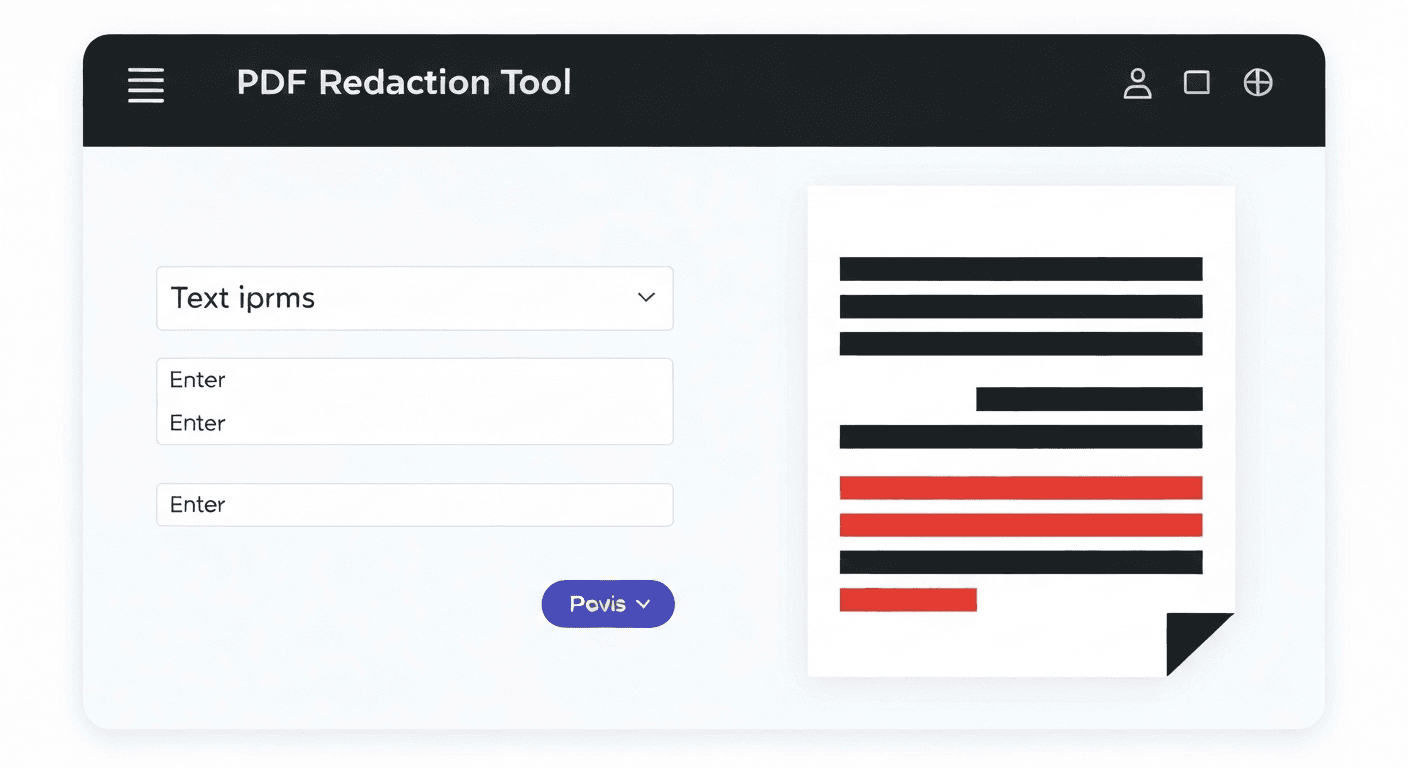
- 1Go to the Redact PDF tool. No account required.
- 2Upload your PDF. The document is uploaded securely and processed on our server.
- 3Enter the text to redact. Type the specific words, names, or numbers you want to remove (e.g. 'John Smith, 07700 900123, ACC-4821'). Enter multiple terms separated by commas.
- 4Click 'Redact PDF'. All instances of the specified text are permanently removed and replaced with solid black bars.
- 5Download and verify. Open the result and confirm the redactions look correct before sharing.
What types of information should be redacted?

- Personal identifiers: Full names, dates of birth, national ID numbers, social security numbers
- Contact details: Phone numbers, email addresses, home addresses
- Financial data: Bank account numbers, credit card numbers, IBAN codes
- Medical information: Diagnoses, patient numbers, prescription details
- Legal identifiers: Case numbers, witness names in certain filings
Redaction vs. password protection — which do you need?
These solve different problems. Redaction removes specific content permanently — even someone with full access to the file will not see the redacted information. Password protection controls who can open the file, but leaves all content intact for authorised viewers.
For sharing documents containing sensitive data about third parties (clients, patients, employees), use redaction. For protecting your own documents from unauthorised access, use password protection. For maximum security, use both.
Frequently asked questions
QCan redacted text be recovered?
Not with our tool. The Redact PDF tool permanently removes the underlying text data from the PDF — it doesn't just add a visual overlay. The redacted content cannot be recovered through any standard means.
QHow do I black out text in a PDF permanently?
Use pdftoolz.io/tools/redact-pdf. Enter the specific text you want to black out, and the tool permanently removes it from the document — not just visually, but from the underlying file data. A black annotation box does not achieve this.
QDoes redaction work on scanned PDFs?
Scanned PDFs are images, not text — the redaction tool works on text-based PDFs. For scanned documents, use the OCR PDF tool first to convert the scanned image to searchable text, then apply redaction.
QHow do I redact a PDF on a Mac or iPhone?
Open Safari, go to pdftoolz.io/tools/redact-pdf, upload your file, enter the terms to redact, and download the result. No software installation needed on any device.
QIs redacting a PDF the same as deleting pages?
No. Redaction removes specific text or areas within pages while keeping the rest of the document intact. Deleting pages removes entire pages from the document. Use redaction to remove sensitive content within a page.