PDFs containing contracts, medical records, financial statements, or personal data should never be sent unprotected. A password-protected PDF ensures that only the intended recipient can open it — even if the file ends up in the wrong inbox.
Here's how to lock a PDF with a password in under 30 seconds, completely free, on any device.
How to password protect a PDF online (step by step)
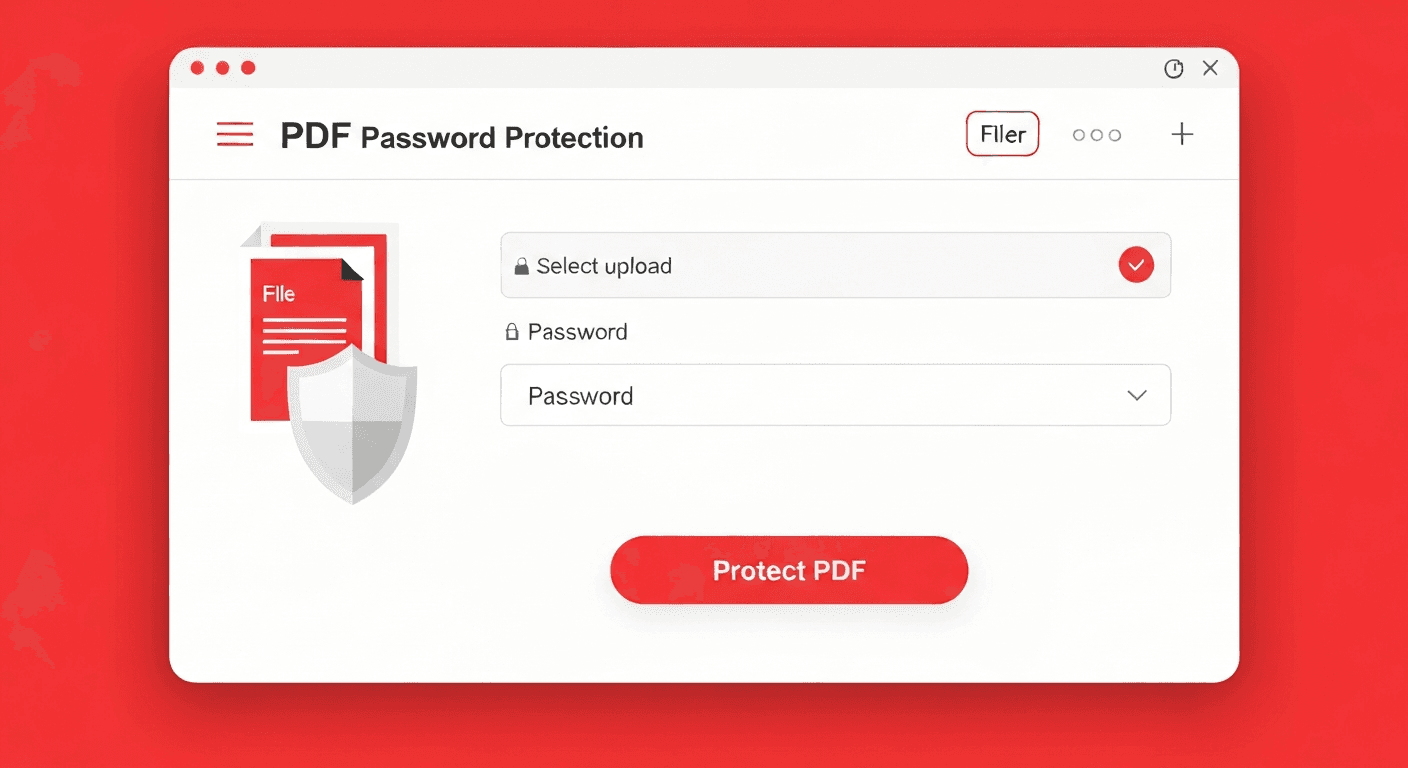
- 1Open the Protect PDF tool. No account needed.
- 2Upload your PDF. Drag and drop or click to select your file.
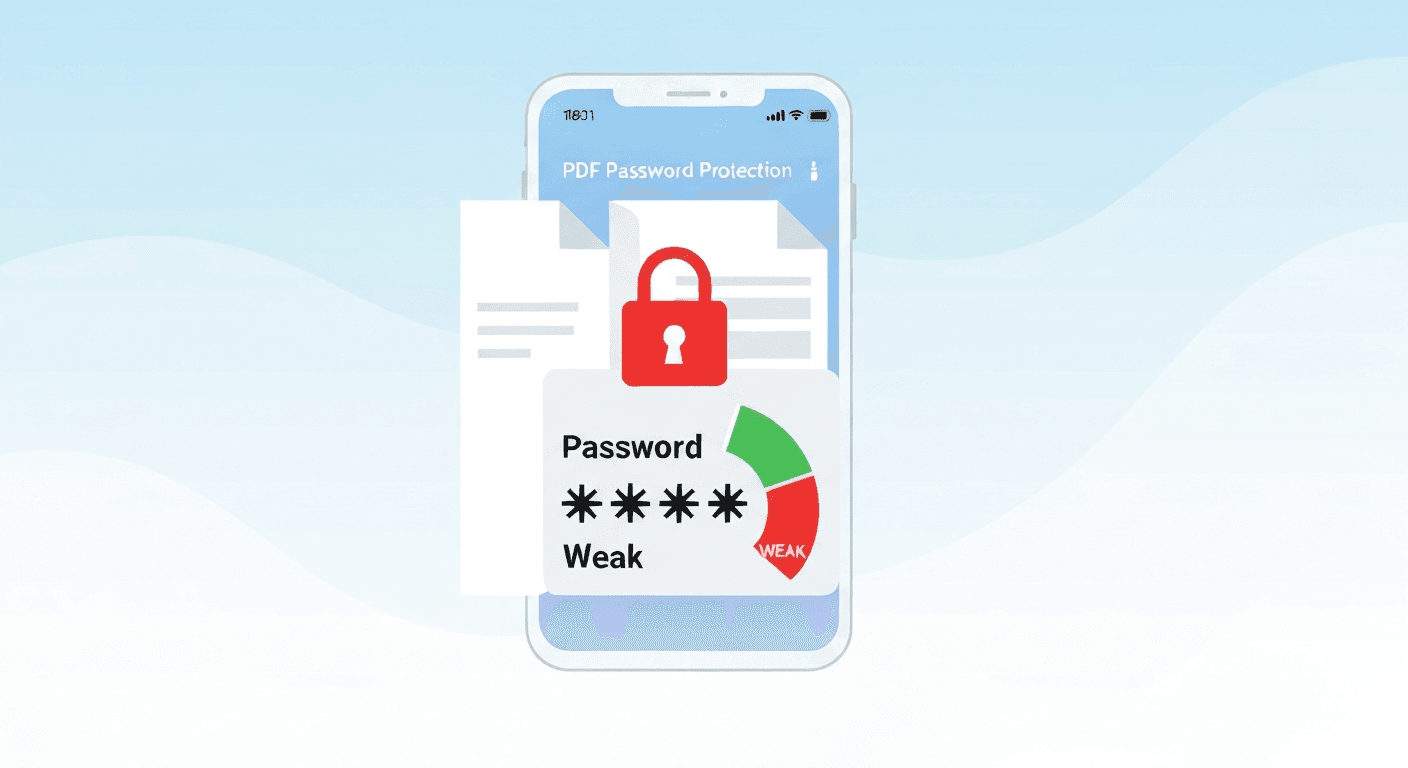
- 3Enter your password. Choose a strong password — at least 8 characters with a mix of letters, numbers and symbols.
- 4Click 'Protect PDF'. The locked file is generated instantly.
- 5Download and share safely. Send the protected PDF and password separately — never together in the same email.
What encryption does the tool use?
The Protect PDF tool uses 128-bit AES encryption — the same standard used by banks and government agencies worldwide. The password is required to open the file in any PDF reader, including Adobe Acrobat, macOS Preview, and mobile apps.
A user password (open password) prevents anyone from opening the PDF without the correct password. An owner password restricts specific actions like printing or copying text — but lets the file open. The Protect PDF tool sets an open password, which is the most secure option for sharing sensitive documents.
What if I forget the PDF password?
There is no recovery option — this is by design. AES-128 encryption cannot be bypassed without the correct password. If you forget the password to a PDF you own, you'll need to start from the original unprotected file and protect it again with a new password.
Always store passwords in a password manager such as Bitwarden or 1Password. Never rely on memory for document passwords.
How to lock a PDF on iPhone or Android
Open pdftoolz.io/tools/protect-pdf in your mobile browser. On iPhone, tap 'Choose file' and select the PDF from the Files app. Enter your password and tap 'Protect PDF'. The locked file downloads directly to your device.
On Android with Chrome, the process is identical — upload from Google Drive or local storage, set the password, and download.
How to remove a PDF password
If you need to unlock a PDF you own, use the Unlock PDF tool. You'll need to enter the current password once to permanently remove the protection. The resulting file opens freely in any PDF reader without a password prompt.
Frequently asked questions
QIs it safe to upload a sensitive PDF to password protect it online?
Yes. All uploads use HTTPS encryption. Files are processed on secure servers and permanently deleted within 2 hours — they are never stored, read, or shared. For classified documents, use offline software like Adobe Acrobat.
QHow do I lock a PDF so it can't be edited or printed?
Use the Protect PDF tool and set a strong password. For additional restrictions (preventing printing, copying, or editing), look for a permissions password option. The Protect PDF tool adds an open password that prevents access entirely.
QCan I password protect a PDF on my phone?
Yes. The Protect PDF tool works on any smartphone browser. Go to pdftoolz.io/tools/protect-pdf on your iPhone or Android, upload the PDF, enter a password, and download the locked file.
QWhat happens if someone tries to open my protected PDF without the password?
Any PDF reader will display a password prompt. Without the correct password, the file content is completely inaccessible — the reader shows only the password field.
QHow do I password protect a PDF without Adobe Acrobat?
Use pdftoolz.io/tools/protect-pdf — it's completely free and requires no software. Upload your PDF, set a password, and download the protected file. No Adobe subscription needed.