You have a PDF — one you created, received, or have been working with for years — and now it is locked behind a password. Maybe you set the password yourself and forgot it. Maybe someone sent it to you protected. Maybe you just need to open, edit, or print it without the password dialog popping up every single time.
This guide covers every scenario for removing a password from a PDF: when you know the password, what your options are when you do not, and exactly how to do it on any device including mobile.
How to remove a password from a PDF (step by step)
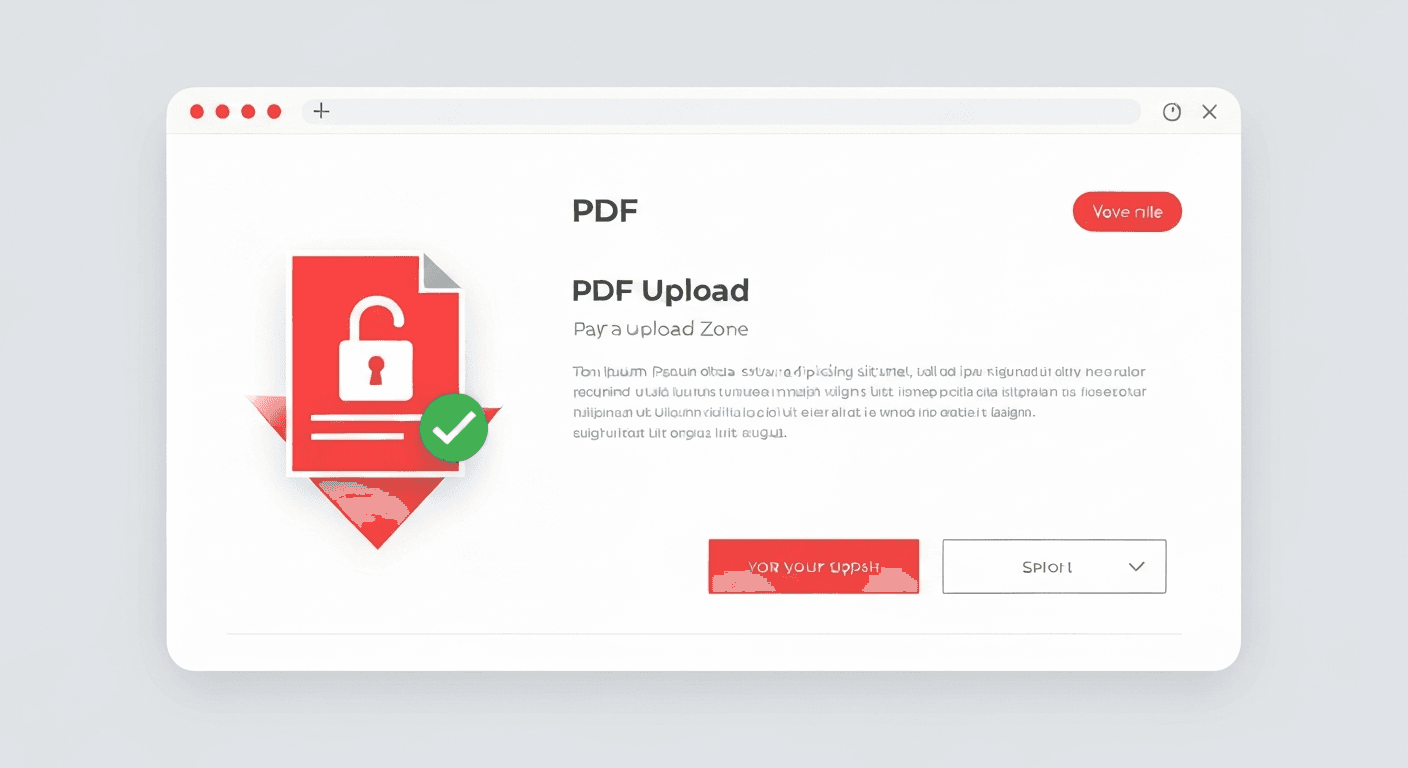
- 1Open the Unlock PDF tool. No account or signup required.
- 2Upload your password-protected PDF. Drag and drop it onto the page or click to browse your files.
- 3Enter your password. This is required to decrypt the file — the tool cannot strip protection without it.
- 4Click 'Unlock PDF'. The password is permanently removed from the document.
- 5Download your unlocked PDF. The result opens in any PDF reader without a password prompt.
What does removing a PDF password actually do?
PDFs support two separate types of password protection that are often confused. The first is an open password (also called a user password): this locks the file entirely — no one can open the PDF without entering the correct password. The Unlock PDF tool removes this layer once you provide the correct password.
The second type is a permissions password (also called an owner password): this leaves the file open but restricts actions like printing, copying text, or editing. This type of restriction is removed automatically when you run the file through the tool, even without knowing the permissions password.
How to remove password protection from a PDF on iPhone or Android
The Unlock PDF tool works entirely in your mobile browser — no app download needed. On iPhone, open Safari and navigate to pdftoolz.io/tools/unlock-pdf. Tap 'Choose file' and select your PDF from the Files app. Enter the password, tap Unlock PDF, and the unlocked file downloads directly to your device.
On Android, the process is identical using Chrome. Open pdftoolz.io/tools/unlock-pdf, tap to upload from your file manager or Google Drive, enter the password, and download.
What if you do not know the password?
If you have genuinely forgotten the password to a PDF you own, the tool cannot bypass encryption — that is by design. AES-128 and AES-256 encryption (used by modern PDFs) cannot be brute-forced in any practical timeframe. Any tool claiming to remove a PDF password without knowing it is either ineffective or a security risk.
However, if you are the original owner, try these approaches before giving up:
- Check your password manager. Most people reuse passwords or store them in browsers, Bitwarden, 1Password, or similar.
- Try common passwords. Dates, names, or the document's subject matter are common choices people use.
- Go back to the source file. If the PDF was exported from Word, Excel, or another app, the original file is likely unprotected. Re-export it as PDF without setting a password.
- Contact the sender. If someone sent you the file, they can re-send it without protection or provide the password.
Is it safe to upload a PDF to remove its password online?
Yes — with a proper tool. All files uploaded to pdftoolz are transferred over HTTPS encryption and permanently deleted from our servers within 2 hours. We never read, store, analyse, or share your documents.
For documents subject to strict legal or regulatory requirements — classified government filings, certain healthcare records — use offline desktop software such as Adobe Acrobat or qpdf (open source) instead of any online tool.
Frequently asked questions
QCan I remove a PDF password without knowing it?
No — not with legitimate software. PDFs encrypted with AES-128 or AES-256 cannot be bypassed without the correct password. If you have forgotten your own password, check your password manager, try common variations, or return to the original source file and re-export it without protection.
QWill removing the password change the PDF content or quality?
No. The Unlock PDF tool only removes the encryption wrapper. All text, images, fonts, layout, and formatting remain completely identical. The resulting file is byte-for-byte the same document — just without the password requirement.
QHow do I remove a PDF password on a Mac?
Use pdftoolz.io/tools/unlock-pdf in Safari — upload the file, enter the password, and download. Alternatively, open the PDF in macOS Preview, enter the password to unlock it, then go to File → Export as PDF. Preview saves the exported copy without the password unless you add a new one.
QHow do I remove password protection from a PDF in Windows?
Open pdftoolz.io/tools/unlock-pdf in any browser (Chrome, Edge, Firefox), upload the protected PDF, enter the password, and download the unlocked version. No software installation needed.
QHow do I open a password-protected PDF without the password?
If you are not the owner and do not have the password, you cannot legally or technically open an encrypted PDF. If you are the owner and have forgotten it, try your password manager, use the original source file, or contact whoever set the protection.
QHow do I remove permissions restrictions from a PDF (printing, copying)?
Upload the PDF to the Unlock PDF tool. Even if there is no open password, the tool automatically strips permissions restrictions — re-enabling printing, text copying, and editing — in the same step.