Many people assume Google Drive's 'restricted sharing' settings add a password to a PDF. They do not. Restricting a Drive link means only specific Google accounts can open it — but the PDF file itself has no password. Anyone with the file downloaded can open it freely.
True PDF password protection encrypts the file so that anyone trying to open it must enter the correct password — even if they have a direct copy of the file. This guide shows you how to add that protection to any PDF in your Google Drive.
How to password protect a PDF from Google Drive
- 1Open Google Drive and download the PDF you want to protect (right-click → Download).
- 2Go to pdftoolz.io/tools/protect-pdf in your browser.
- 3Upload the downloaded PDF. Drag it onto the tool or click to browse.
- 4Enter a password — use something strong (12+ characters, mix of letters, numbers, symbols).
- 5Click 'Protect PDF' and download the encrypted file.
- 6Re-upload to Google Drive if you want the protected version stored in your cloud.
Google Drive sharing vs PDF password: what is the difference?
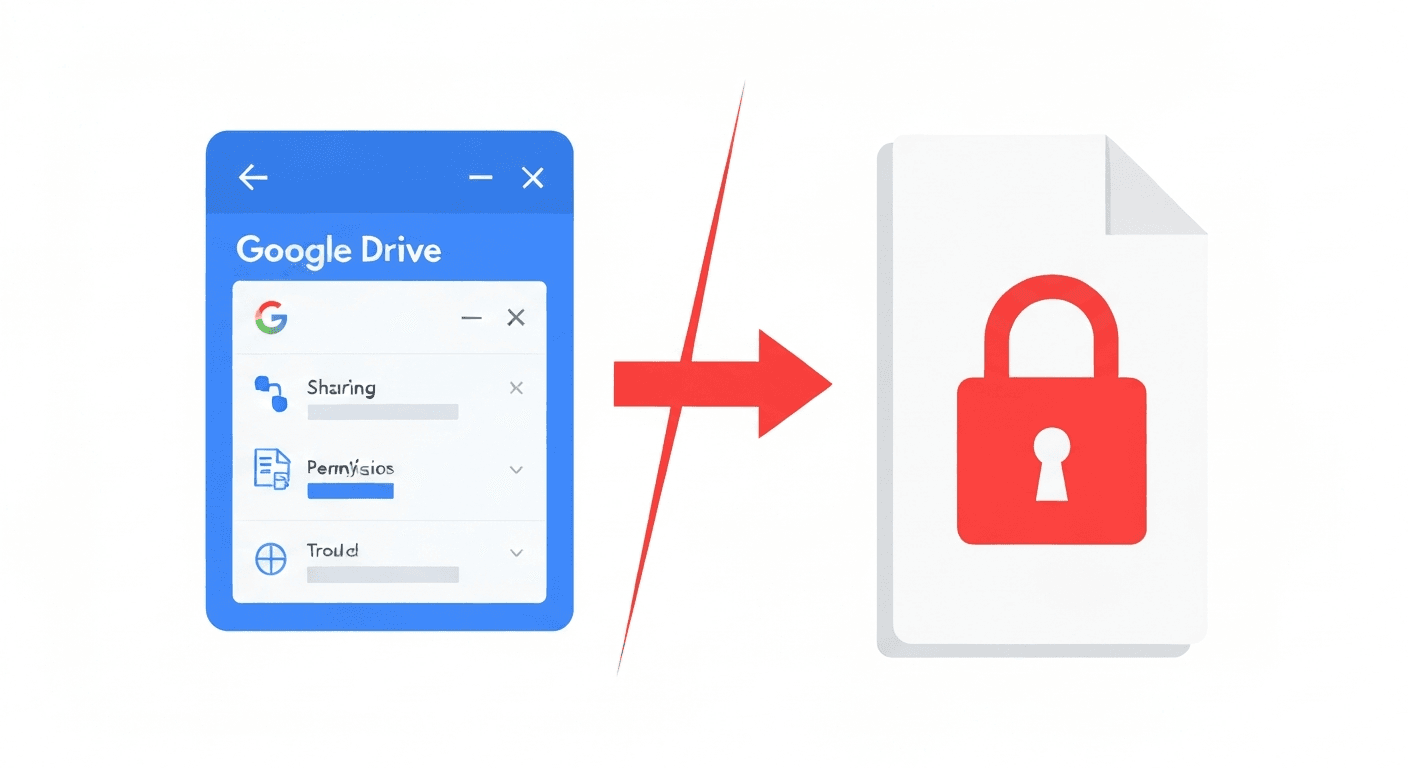
Google Drive sharing controls who can access a file through the Drive link or the web interface — but the underlying file itself is unprotected. If someone downloads the PDF (or you send it via email/WhatsApp/Slack), those Drive permission settings no longer apply.
A PDF password is embedded into the file itself using AES-128 or AES-256 encryption. No matter how someone receives the file — email attachment, USB drive, shared link — they cannot open it without the password. This is the correct approach for genuinely sensitive documents.
Can I encrypt a PDF directly inside Google Drive?
No — Google Drive and Google Docs do not offer a native option to add password encryption to PDF files. There are Google Workspace Marketplace add-ons that can do this, but they require granting account access to third-party services.
For most users, the fastest and most private approach is to download the PDF, protect it with a dedicated tool (which processes it locally or over HTTPS and deletes the file immediately), and re-upload. No account access required, no add-on permissions needed.
Frequently asked questions
QCan Google Drive add a password to a PDF?
No. Google Drive does not have a native feature to add password protection to PDF files. It offers sharing permissions (who can view/edit via a Drive link), but these do not encrypt the file itself. Use a dedicated PDF password tool to properly protect the file.
QHow do I lock a PDF so only I can open it?
Upload your PDF to pdftoolz.io/tools/protect-pdf, set a strong password, and download the encrypted file. The PDF is now locked with AES encryption — nobody can open it without entering the password, regardless of how they receive the file.
QIs it safe to password protect a PDF online?
Yes, with reputable tools. pdftoolz transfers all files over HTTPS and permanently deletes them within 2 hours. For highly sensitive documents (legal, financial, medical), you can also use offline tools like Adobe Acrobat or the free qpdf command-line tool.
QHow do I remove a password from a PDF stored in Google Drive?
Download the PDF from Drive, go to pdftoolz.io/tools/unlock-pdf, upload the file, enter the current password, and download the unlocked version. Re-upload to Drive if needed.
QCan I share a password-protected PDF via Google Drive?
Yes — upload the protected PDF to Drive and share the link normally. Recipients download the file and need the password to open it. This combines Drive's sharing convenience with the security of PDF encryption.