
A watermark is a semi-transparent text or image overlaid on a document's pages. It signals status (DRAFT, CONFIDENTIAL), identifies the owner, or discourages unauthorized copying and distribution. Adding a watermark takes seconds with the right tool — no Acrobat subscription needed.
This guide covers how to add a text watermark to any PDF, free and online, with control over text, opacity, and position.
How to add a watermark to a PDF (step by step)
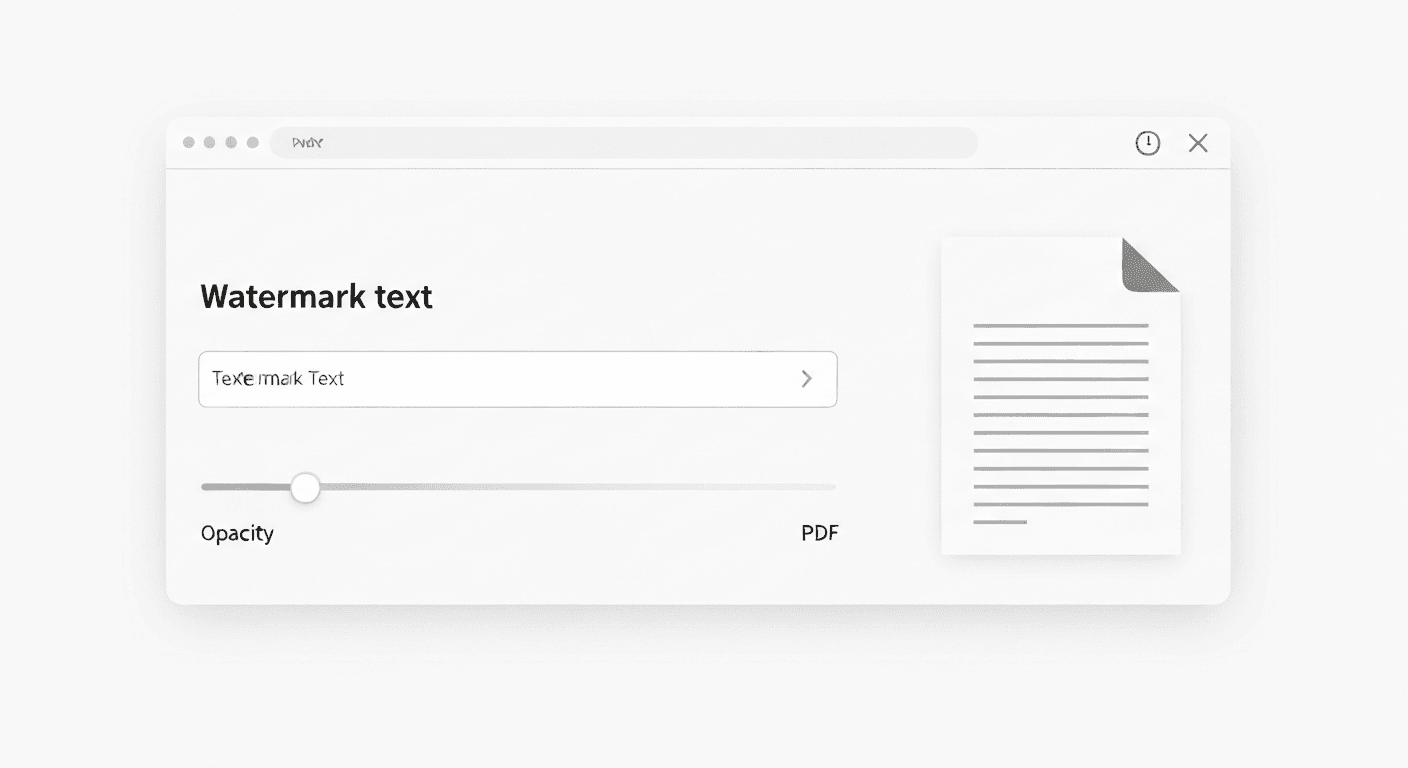
- 1Open the Add Watermark tool. No signup required.
- 2Upload your PDF. Drag and drop the file or click to browse.
- 3Enter your watermark text. Common choices: CONFIDENTIAL, DRAFT, COPY, your company name, or a copyright notice.
- 4Adjust opacity. Lower opacity makes the watermark more subtle. 30-50% is standard for most documents.
- 5Click 'Add Watermark'. The watermark is applied to every page.
- 6Download your watermarked PDF. Ready instantly.
Common watermark types and when to use them
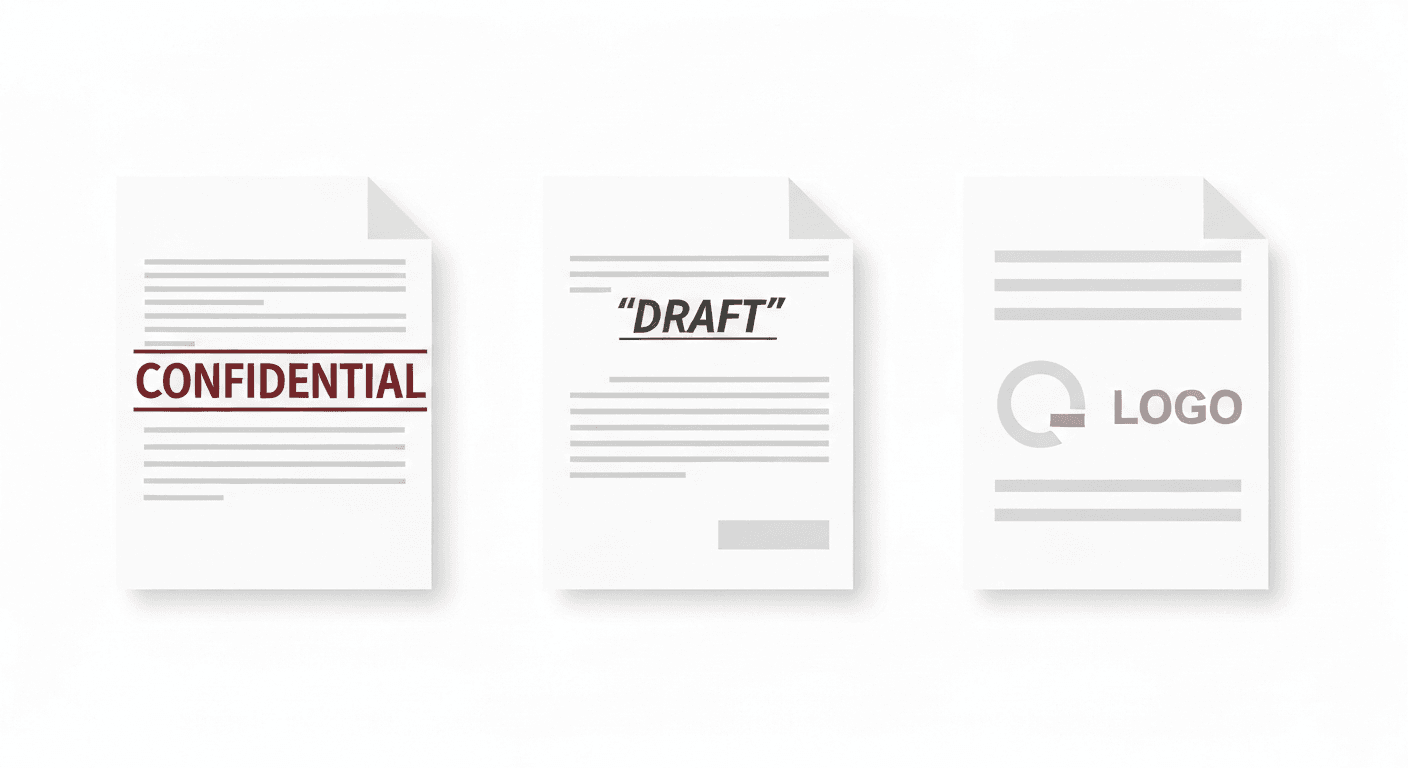
- CONFIDENTIAL: Use when distributing sensitive documents — financial reports, legal contracts, HR documents. Signals that the content should not be shared further.
- DRAFT: Mark documents that are not yet final. Prevents recipients from treating provisional versions as authoritative.
- COPY: Applied to distributed copies to distinguish them from originals. Common in legal and government contexts.
- Company / author name: Adds attribution to documents. Deters unauthorized redistribution of proprietary content, reports, or designs.
- FOR REVIEW ONLY: Used when sending documents for feedback — signals that the content is not for public distribution.
Does watermarking prevent editing or copying the PDF?
A text watermark alone does not prevent editing — it is a visual deterrent, not a technical lock. Someone with the right software can edit or remove a watermark from a PDF.
For genuine document security, combine watermarking with password protection. Use the Protect PDF tool to add a permissions password that disables editing, copying, and printing. The combination of a visible watermark and permissions restrictions provides the most effective deterrent.
Frequently asked questions
QCan I remove a watermark from a PDF?
Watermarks added as a text layer can potentially be removed with professional PDF editing software. For stronger protection, combine watermarking with PDF password protection to restrict editing.
QWill the watermark cover the original content?
No. Watermarks are applied at a semi-transparent opacity level so the original content remains fully readable beneath them. The standard opacity level (around 30-40%) makes the watermark visible without obscuring the document.
QCan I watermark every page at once?
Yes. The tool automatically applies the watermark to every page of the PDF in a single operation. There is no way to apply it to selected pages only — it is applied globally.
QHow do I add a watermark to a PDF on Mac?
Use pdftoolz.io/tools/add-watermark in any browser. macOS Preview does not natively support adding watermarks to PDFs.
QIs the watermark searchable text?
Yes. The watermark text is added as real PDF text, not as an image. This means it is selectable, searchable, and visible to screen readers.