You've assembled a professional report, merged several documents, or prepared a submission — and realized there are no page numbers. Or perhaps you merged documents from different sources and the page numbering is inconsistent. Adding page numbers to a PDF after the fact should be simple, and with the right tool, it is.
This guide covers how to add page numbers to any PDF in under 60 seconds, with control over position and starting number.
How to add page numbers to a PDF (step by step)
- 1Open the Add Page Numbers tool. No account needed.
- 2Upload your PDF. Drop the file onto the upload area or click to browse.
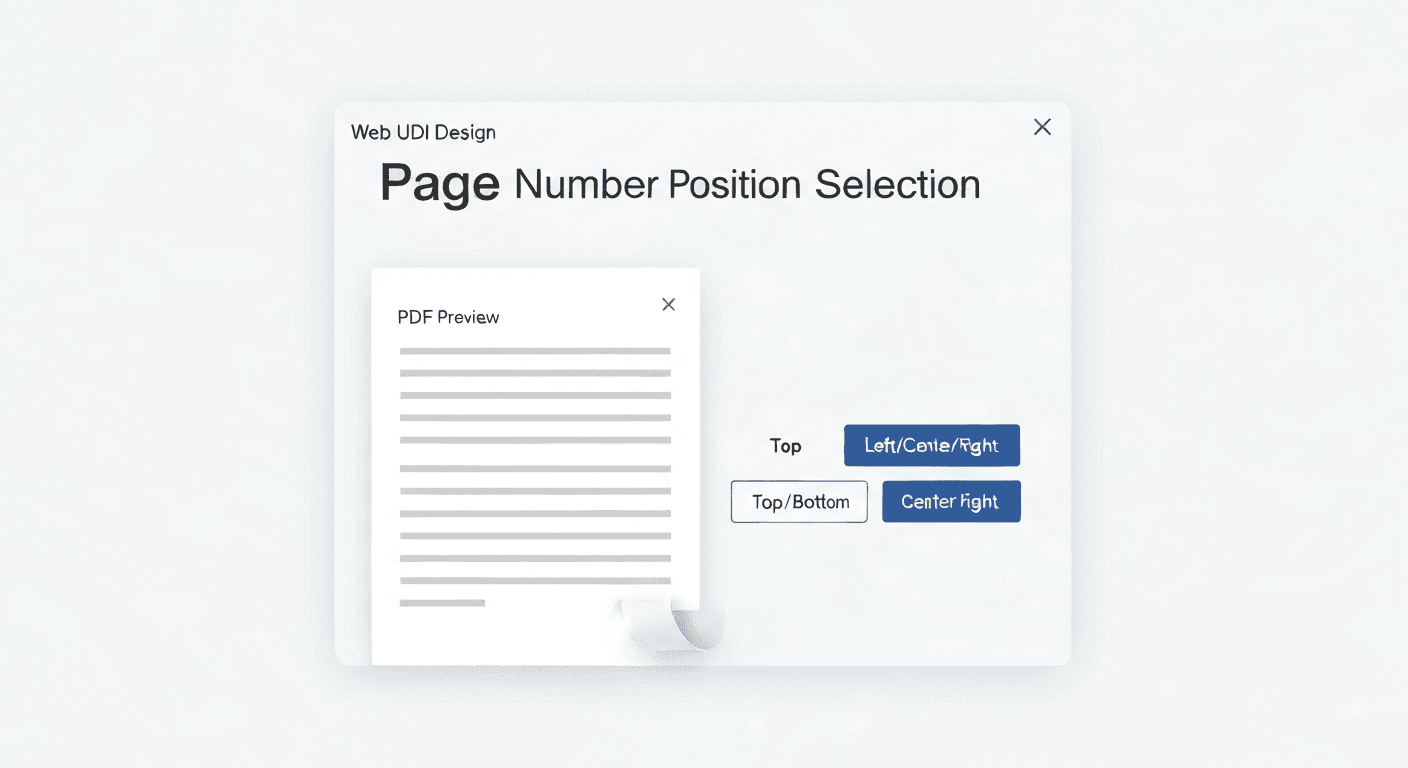
- 3Configure the numbering. Choose position (top or bottom, left / center / right), starting number, and font size.
- 4Click 'Add page numbers'. Numbers are added to every page of the document.
- 5Download your numbered PDF. The result is ready instantly.
Choosing the right position for page numbers
The tool supports six positions: top-left, top-center, top-right, bottom-left, bottom-center, and bottom-right. The most widely used convention in formal documents is bottom-center (for reports, theses, and books) or bottom-right (for legal and business documents). Top-right is common in journals and academic papers.
Choose a position that doesn't overlap any existing content in your PDF. If your document has a footer already, using a top position avoids interference.
Numbering options and starting page
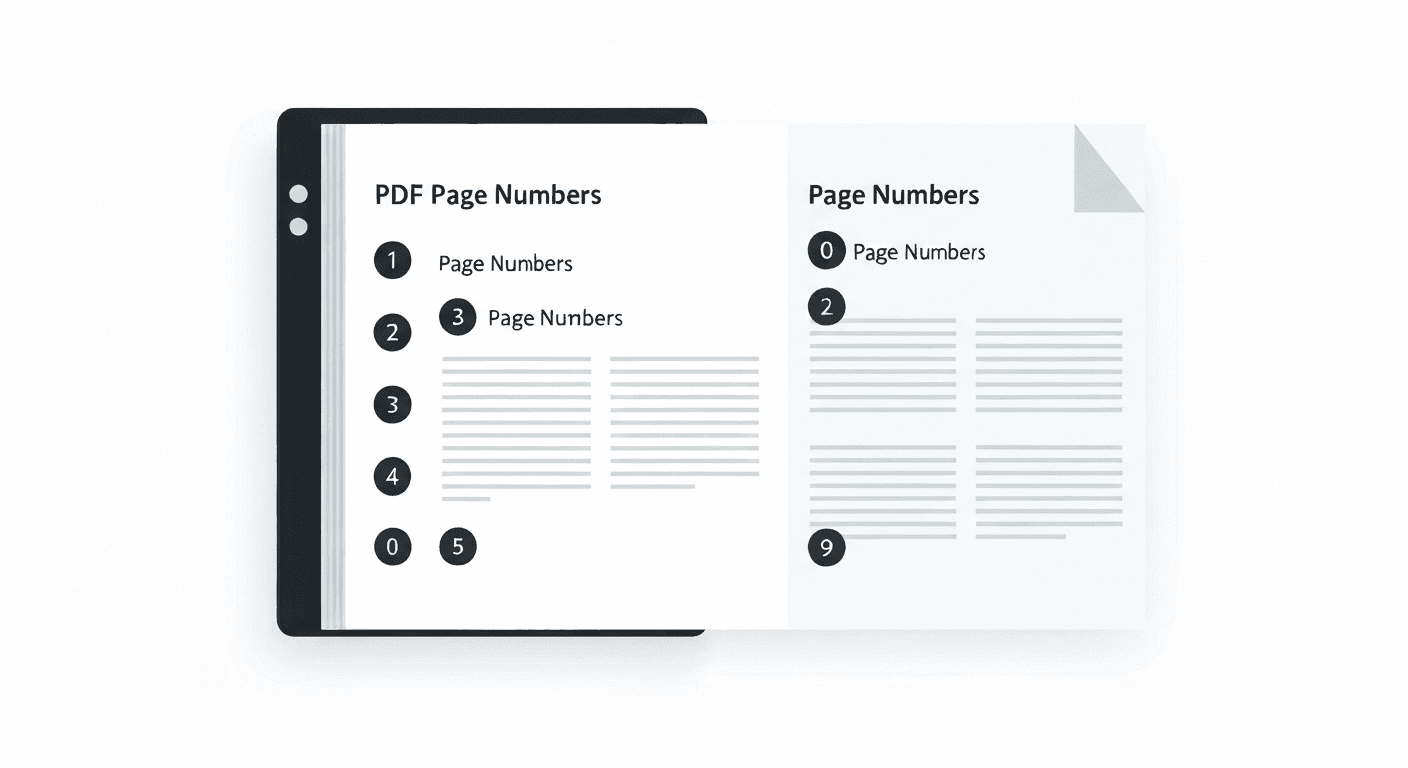
The starting number option is especially useful when you've merged documents and need the page numbers to continue from where a previous document left off. For example, if Chapter 1 ended on page 24, set the starting number to 25 for Chapter 2.
You can also use this to skip numbering the cover page — set the starting number to 0 and the first visible number on page 2 will read '1'.
Does adding page numbers modify the original content?
No. The Add Page Numbers tool adds numbers as a new layer on top of your existing PDF. All original text, images, fonts, and formatting are untouched. The numbers appear in a clean, readable font at the margin of each page.
Frequently asked questions
QCan I add page numbers starting from a number other than 1?
Yes. Set the starting number to any value before clicking 'Add page numbers'. This is useful when continuing pagination from a previous document or skipping a cover page.
QCan I skip adding a page number to the first page?
Set the starting number to 0. The first page will technically be '0' but this is usually not visible — the first rendered number will appear as '1' on the second page. For more precise control over which pages get numbers, this method is the simplest available in the free tool.
QWill the page numbers be selectable and searchable text?
Yes. Page numbers are added as real text, not as images. They are selectable, copyable, and fully searchable in any PDF reader.
QHow do I add page numbers to a PDF on Mac?
Use pdftoolz.io/tools/add-page-numbers in any browser. macOS Preview does not natively support adding page numbers to PDFs.
QWhat font and size are the page numbers?
The tool uses a clean, professional sans-serif font at a readable size (12pt by default). The styling is intentionally neutral to match the majority of professional documents.