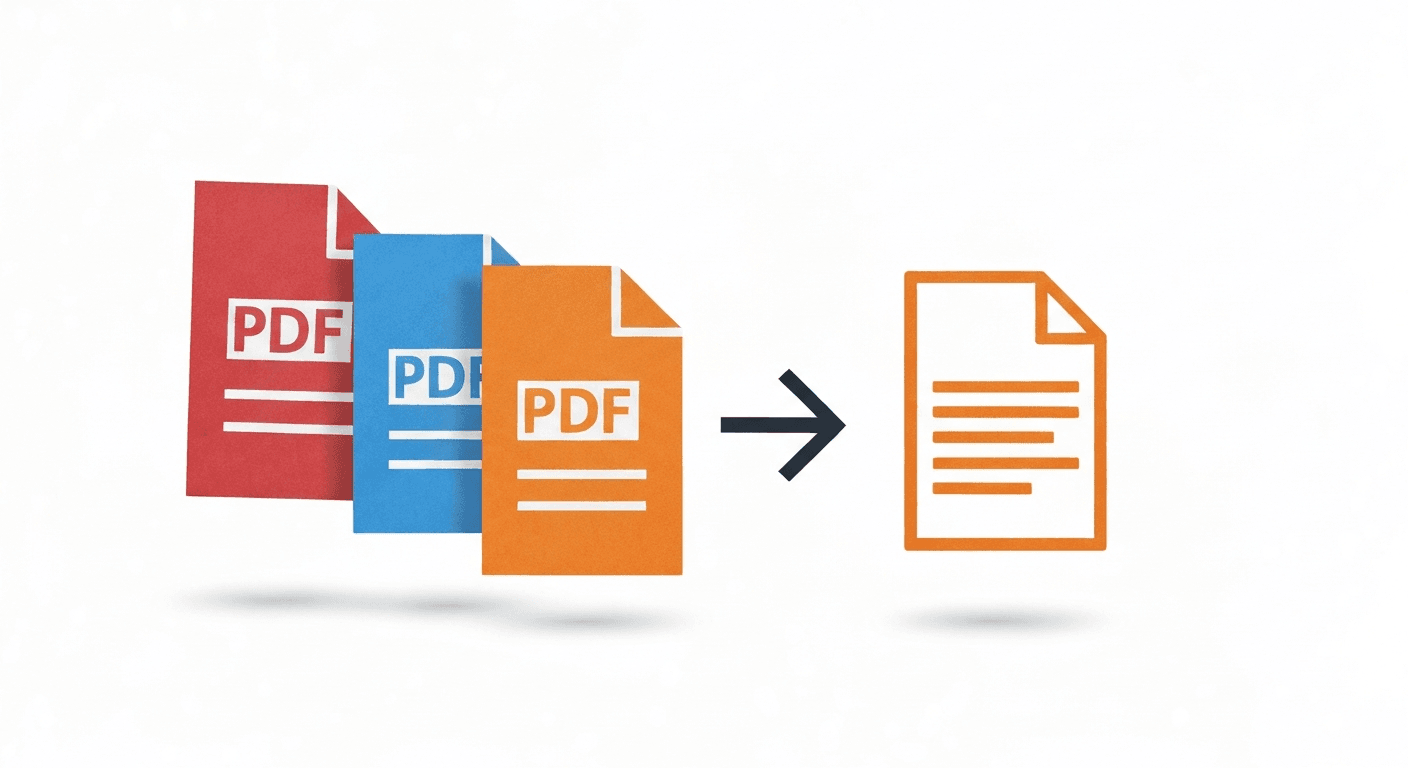
Whether you're combining a cover letter with your CV, assembling a report from multiple sources, or merging scanned pages into one file — combining PDF documents is one of the most common tasks around. The good news: you don't need Acrobat or any paid software to do it.
This guide walks you through merging PDF files in under 60 seconds using pdftoolz, completely free and without creating an account.
How to merge PDF files online (step by step)
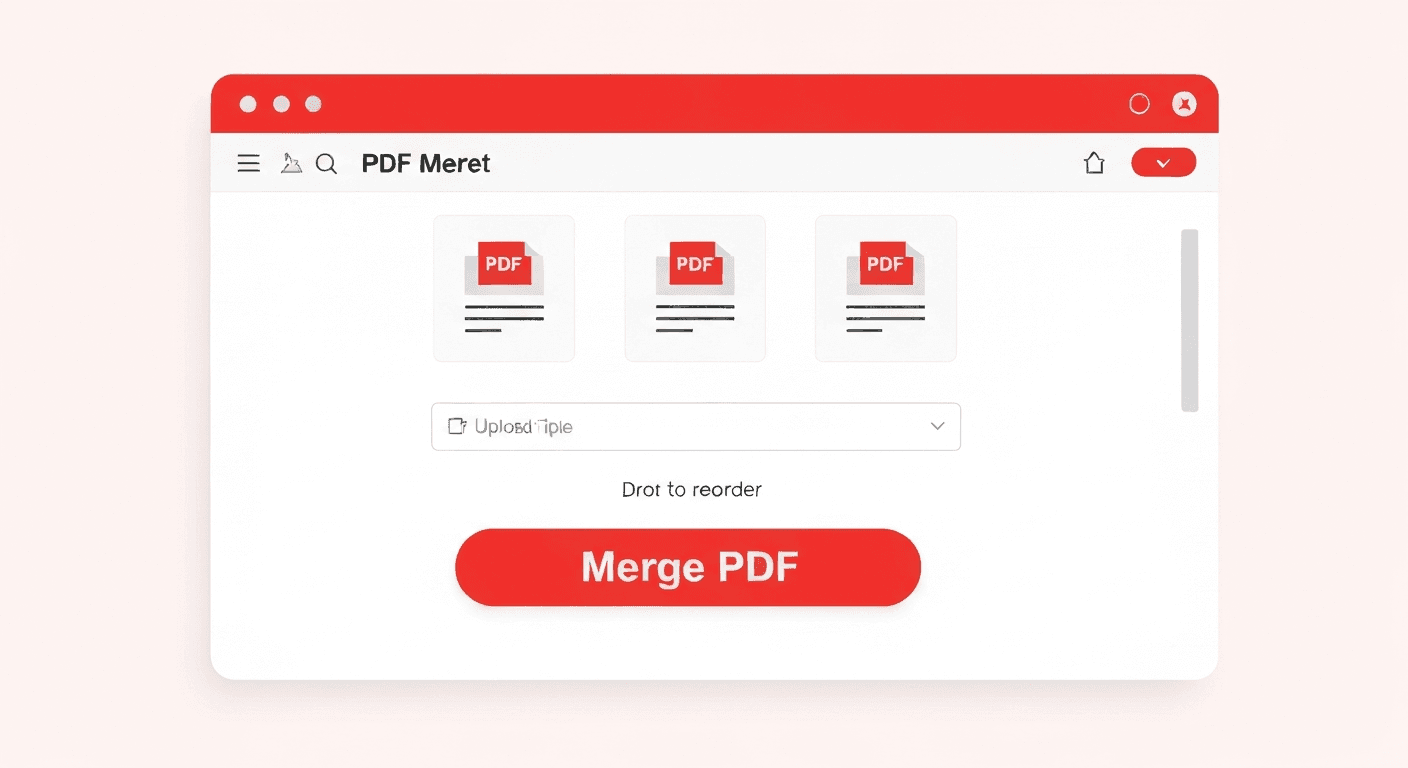
- 1Go to the Merge PDF tool. Open the Merge PDF page — no signup needed.
- 2Upload your files. Click 'Choose files' or drag and drop your PDFs onto the upload area. You can add as many files as you need.
- 3Reorder if needed. The files appear in the order you added them. Drag thumbnails to rearrange before merging.
- 4Click 'Merge PDF'. The tool combines all files instantly into a single PDF.
- 5Download your merged PDF. Your combined file is ready in seconds.
Does merging PDFs affect quality?
No. pdftoolz merges PDFs at the structural level — it does not re-render pages or convert them to images. All text stays selectable, all vector graphics stay crisp, all fonts are preserved. The output is identical in quality to the originals.
Page numbers embedded in the original documents stay exactly as they are — the merge tool does not renumber pages. If you need sequential page numbers across the combined document, use the Add Page Numbers tool after merging.
Can I merge more than 2 PDFs?
Yes — there's no hard limit on the number of files you can combine in one operation. Upload as many PDFs as you need and the tool merges them all at once in the order you specify.
If your combined files exceed the size limit, compress each PDF individually first to reduce their size, then merge the compressed versions.
How to merge PDFs on iPhone or Android
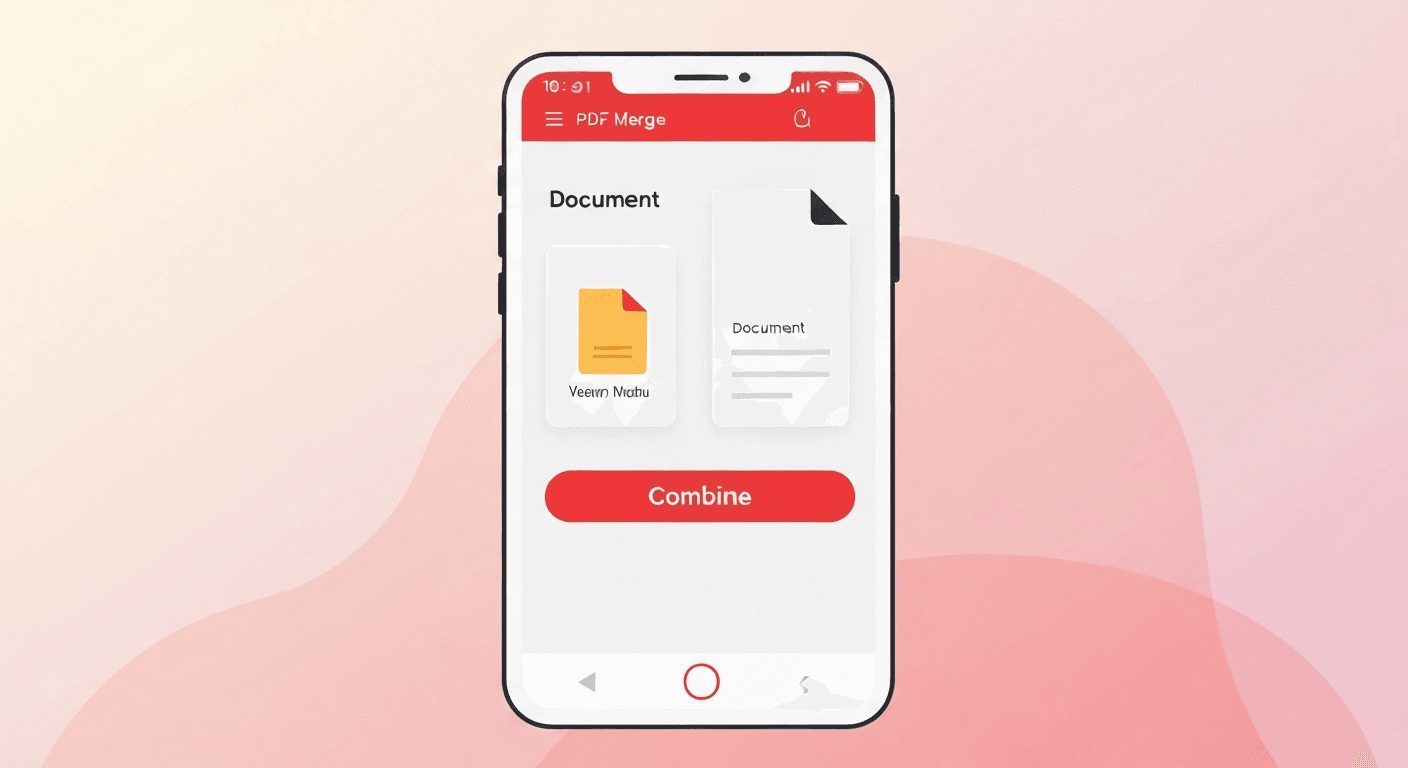
The Merge PDF tool works fully in your mobile browser — no app download required. On iPhone, open Safari and go to pdftoolz.io/tools/merge-pdf. Tap 'Choose files', select your PDFs from the Files app or iCloud Drive, and tap Merge PDF.
On Android, use Chrome and select files from Google Drive or local storage. The combined PDF downloads directly to your device.
Other tools you might need after merging
After combining PDF files, you might also want to rotate pages that are in the wrong orientation, remove pages you don't need, or add page numbers across the full combined document.
Frequently asked questions
QIs it safe to merge PDFs online?
Yes. All files are transferred over encrypted HTTPS connections and permanently deleted from our servers within 2 hours. We never store, read, or share your documents.
QCan I merge PDF files on my iPhone or Android?
Absolutely. pdftoolz works in any mobile browser — Safari, Chrome, Firefox. No app to install. Just open the Merge PDF tool and upload your files directly from your phone.
QWhy are my merged pages in the wrong order?
Files are merged in the order they were uploaded. Drag thumbnails in the upload area to reorder them before clicking Merge.
QHow do I combine PDF files for free without Adobe?
Use pdftoolz.io/tools/merge-pdf — upload your PDFs, arrange them in the right order, and click Merge PDF. No Adobe Acrobat, no subscription, no signup required.
QIs there a limit on how many PDFs I can merge at once?
There's no fixed limit on the number of files. Upload as many PDFs as you need. File size limits apply based on your account level — guest users have a 10 MB combined limit.