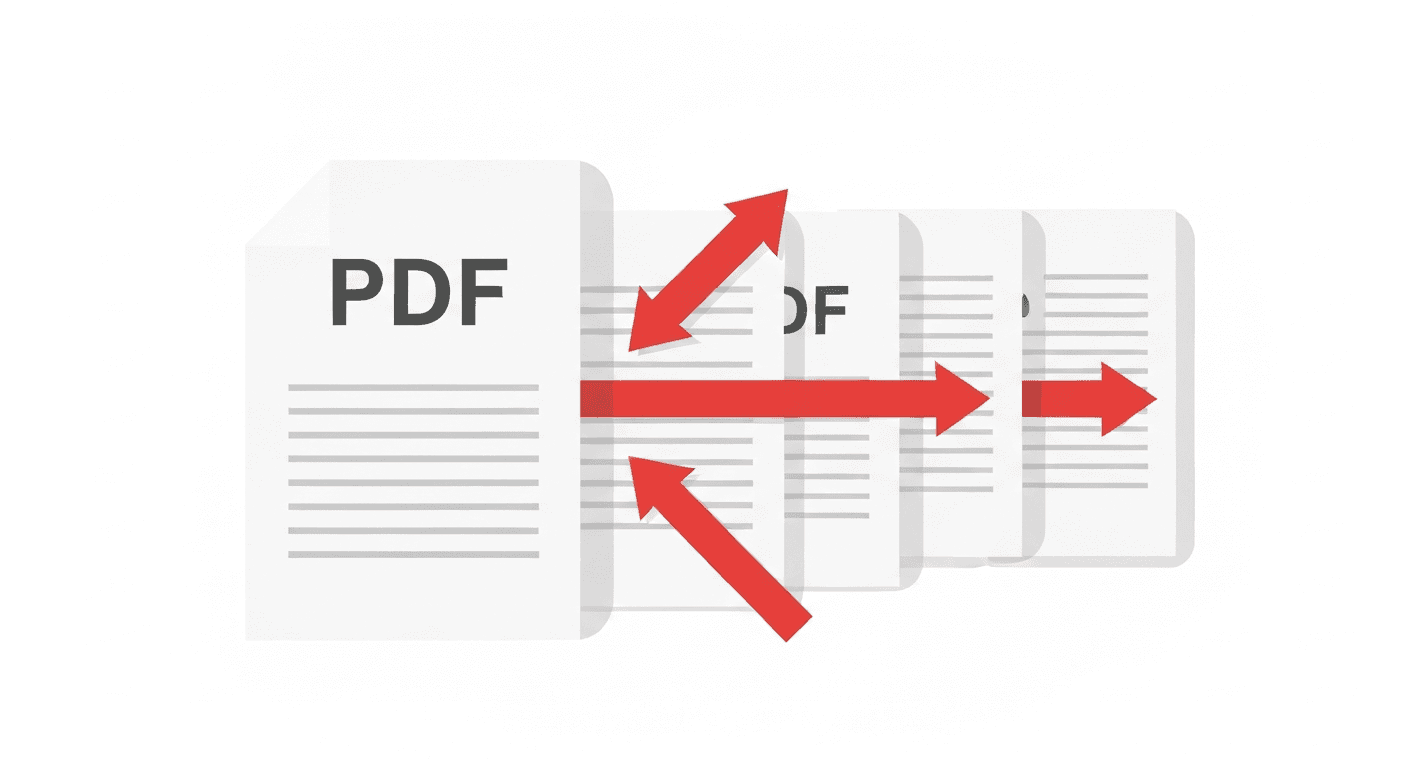
Splitting a PDF is the mirror image of merging one. Instead of combining documents, you're breaking one document into smaller pieces — by page range, by chapter, or into individual single-page files. Common use cases: sending only the relevant pages of a contract, separating a multi-chapter report, or distributing individual invoices from a batch PDF.
Here's how to split a PDF in under 60 seconds, completely free.
How to split a PDF online (step by step)
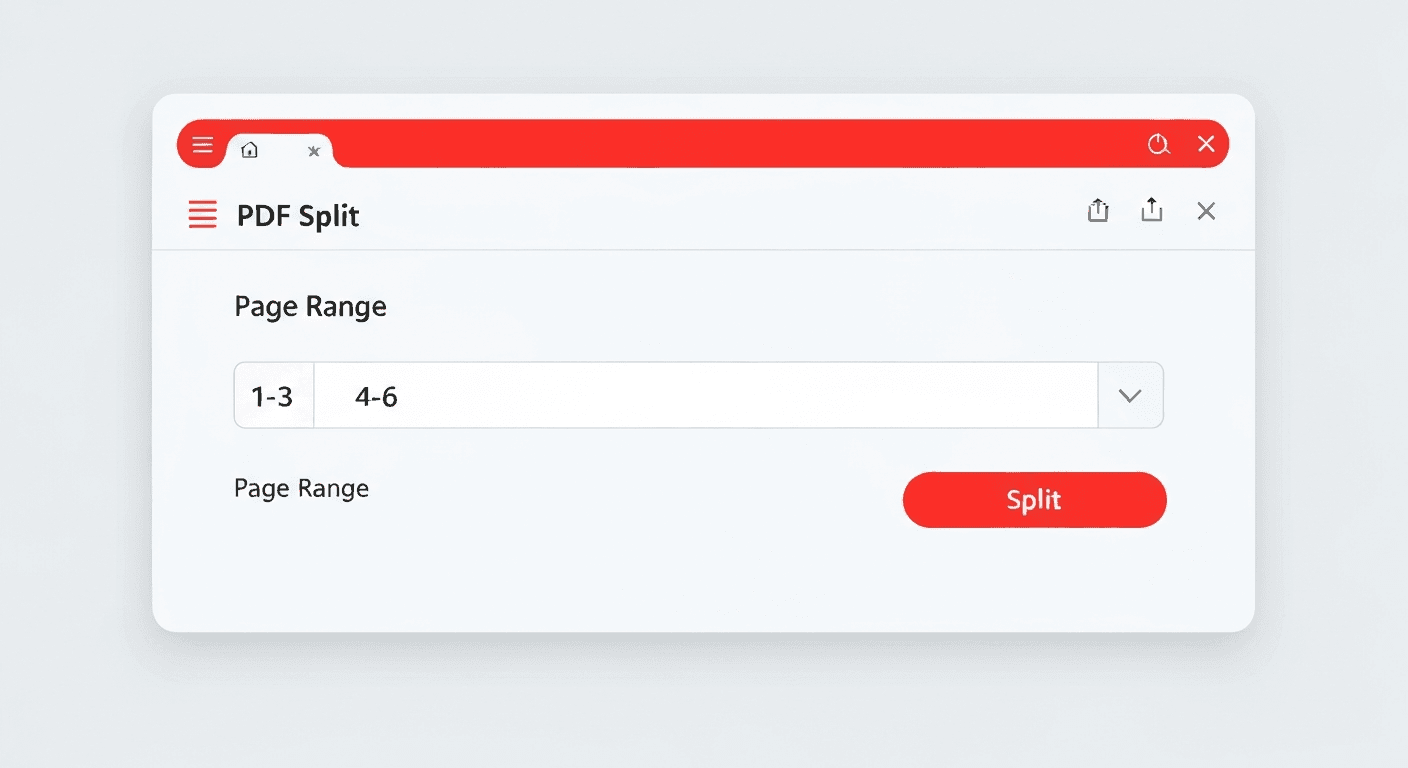
- 1Open the Split PDF tool. No signup needed.
- 2Upload your PDF. Drag and drop the file onto the page or click to browse.
- 3Choose your split mode. Split by custom page ranges or split every page into a separate file.
- 4Enter page ranges (if applicable). For example: 1-3, 4-6, 7 gives you three output files.
- 5Click 'Split PDF'. The tool splits the document instantly.
- 6Download the results. Each output file downloads as a separate PDF, or as a ZIP if multiple files are created.
Split modes explained
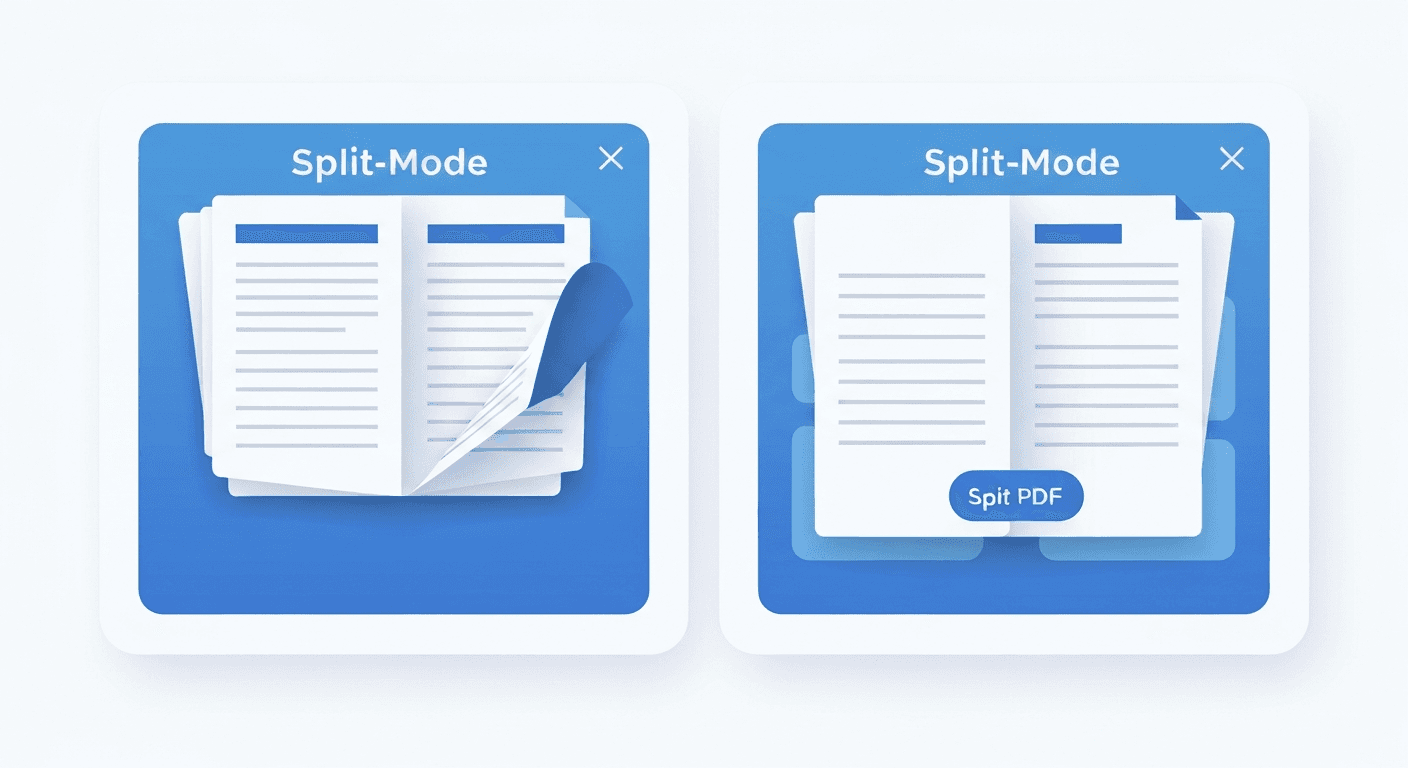
- Split by page range: Specify custom ranges like 1-5, 6-10, 11-15. Each range becomes its own PDF file. Ideal for splitting a document by chapter, section, or recipient.
- Split every page: Each page of the PDF becomes its own separate file. Useful for processing individual pages, extracting invoices from a batch, or separating scanned documents.
What happens to the output files?
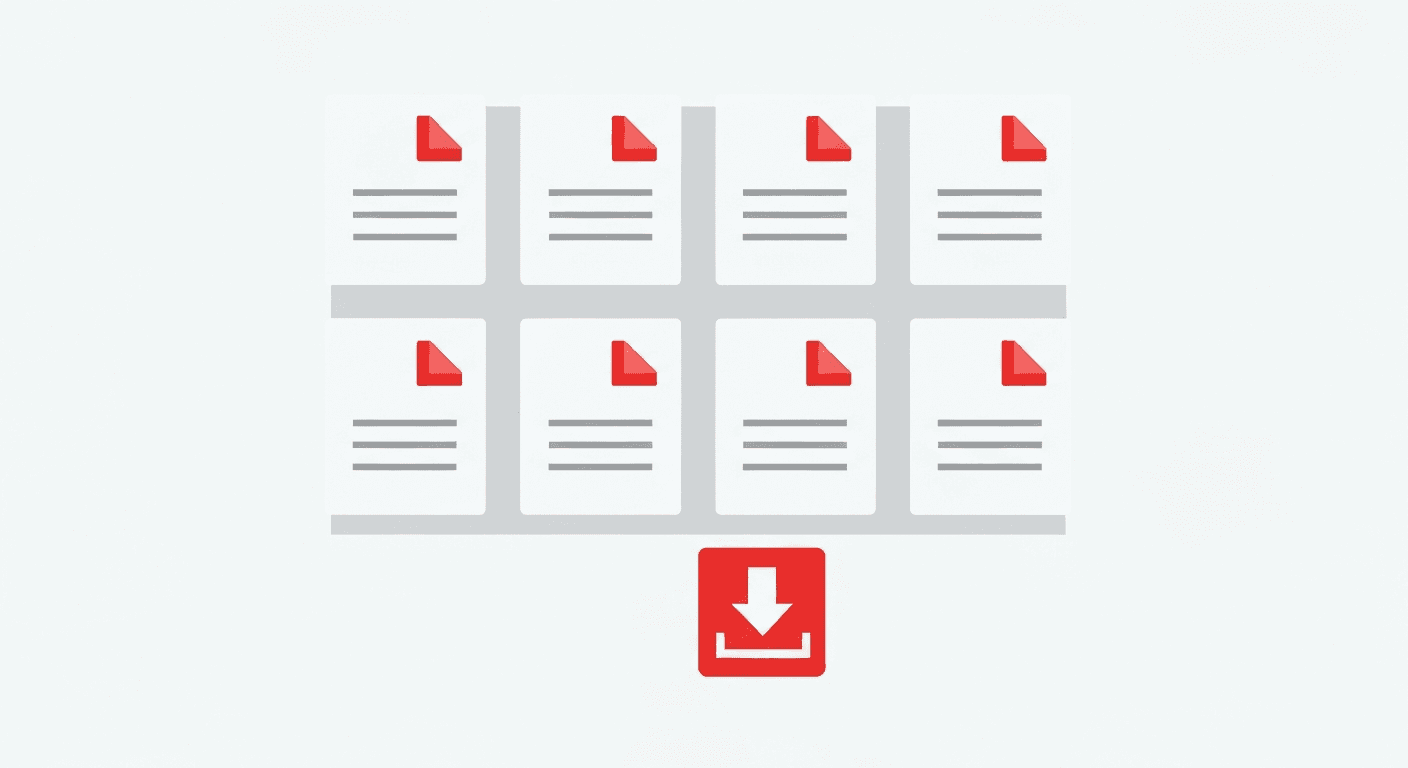
Each output file contains the pages you specified, with all original content — text, images, fonts, and annotations — preserved exactly. Output files are named sequentially (e.g. output_1.pdf, output_2.pdf). If the split produces more than one file, all files are packaged into a ZIP archive for download.
All files are permanently deleted from our servers within 2 hours.
Split PDF vs Remove Pages vs Extract Pages
- Split PDF: Breaks one PDF into multiple output files based on page ranges.
- Remove Pages: Deletes specific pages from a PDF, keeping the rest as one file.
- Extract Pages: Pulls out specific pages into a new PDF without modifying the original.
- Merge PDF: Combines multiple PDFs into one — the reverse operation.
Frequently asked questions
QCan I split a PDF into individual pages?
Yes. Choose the 'Split every page' mode and the tool will create one PDF file per page. All files are packaged in a ZIP archive for download.
QHow many files can I split a PDF into?
There's no fixed limit on the number of output files. A 100-page PDF split into individual pages will produce 100 separate files, all available in one ZIP download.
QWill splitting a PDF affect quality?
No. The split tool works at the structural PDF level — it does not re-render or re-encode any content. All text, images, and formatting are identical to the original.
QHow do I split a PDF on Mac?
Use pdftoolz.io/tools/split-pdf in any browser. Alternatively, open the PDF in macOS Preview, drag page thumbnails from the sidebar into a Finder window to extract individual pages.
QCan I split a password-protected PDF?
You need to unlock the PDF first. Use the Unlock PDF tool to remove the password, then split the unlocked version.