
Adding a watermark to a PDF on iPhone is surprisingly straightforward — you do not need to install an app or pay for a subscription. A browser-based tool handles it entirely in Safari, with the result downloading directly to your Files app.
This is useful for marking draft documents, protecting proprietary content before sharing, branding client-facing documents, or adding a CONFIDENTIAL stamp to sensitive files before distribution.
How to add a watermark to a PDF on iPhone
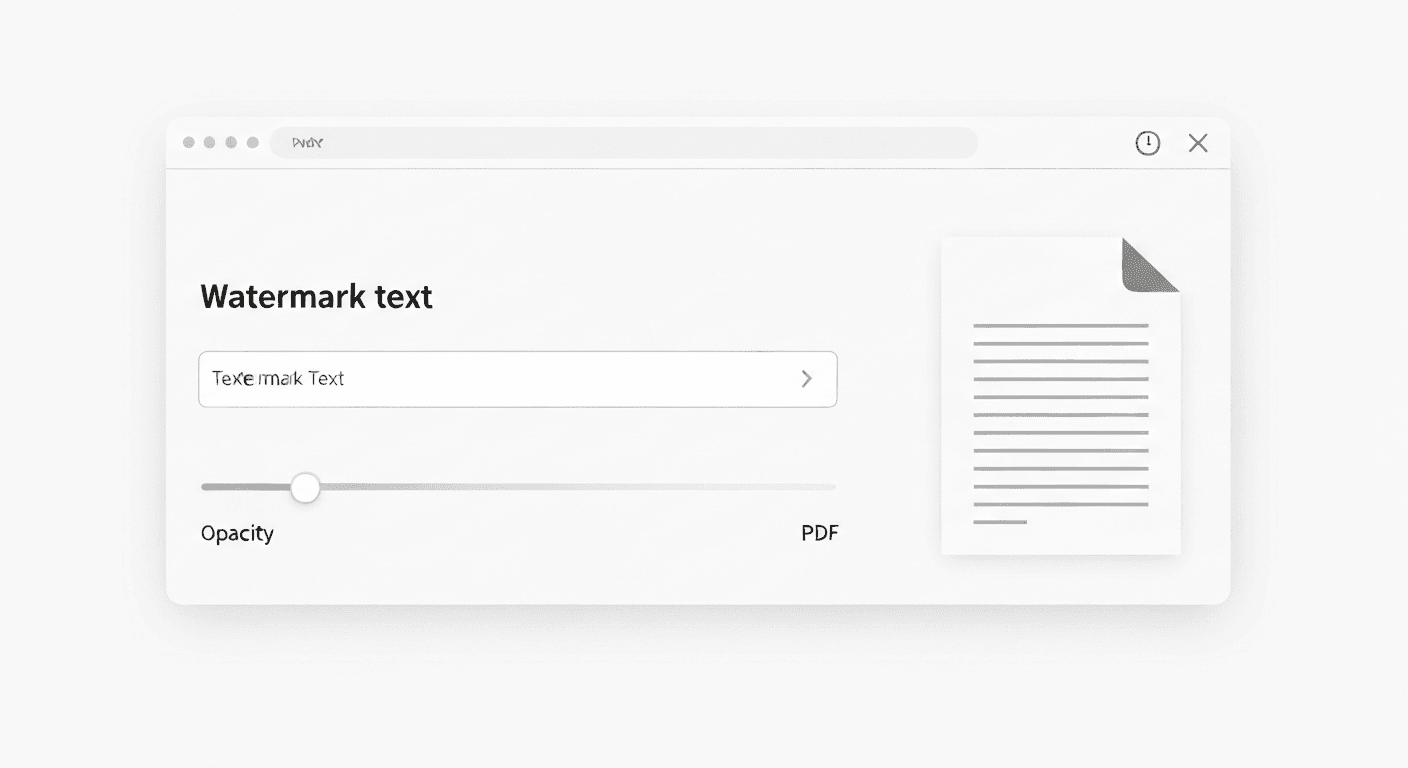
- 1Open Safari on your iPhone and go to pdftoolz.io/tools/watermark-pdf.
- 2Tap 'Choose File' and select the PDF from your Files app, iCloud Drive, or other storage.
- 3Enter your watermark text — for example: CONFIDENTIAL, DRAFT, DO NOT COPY, or your company name.
- 4Adjust settings (optional): Most tools let you choose font size, opacity (how transparent the watermark appears), and position (diagonal across the page is standard).
- 5Tap 'Add Watermark' and wait a few seconds.
- 6Download the watermarked PDF — it saves directly to your Downloads folder in the Files app.
Watermark a PDF on iPhone without an app
The key advantage of using a browser tool is that nothing is installed on your iPhone. This matters if you are working on a managed corporate device where app installations are restricted, if you want to keep your home screen uncluttered, or if you only occasionally need to watermark documents.
Safari on iOS handles file uploads and downloads just like a desktop browser. The PDF processes on the server and downloads immediately — the whole process takes about 30 seconds.
What watermark text should you use?
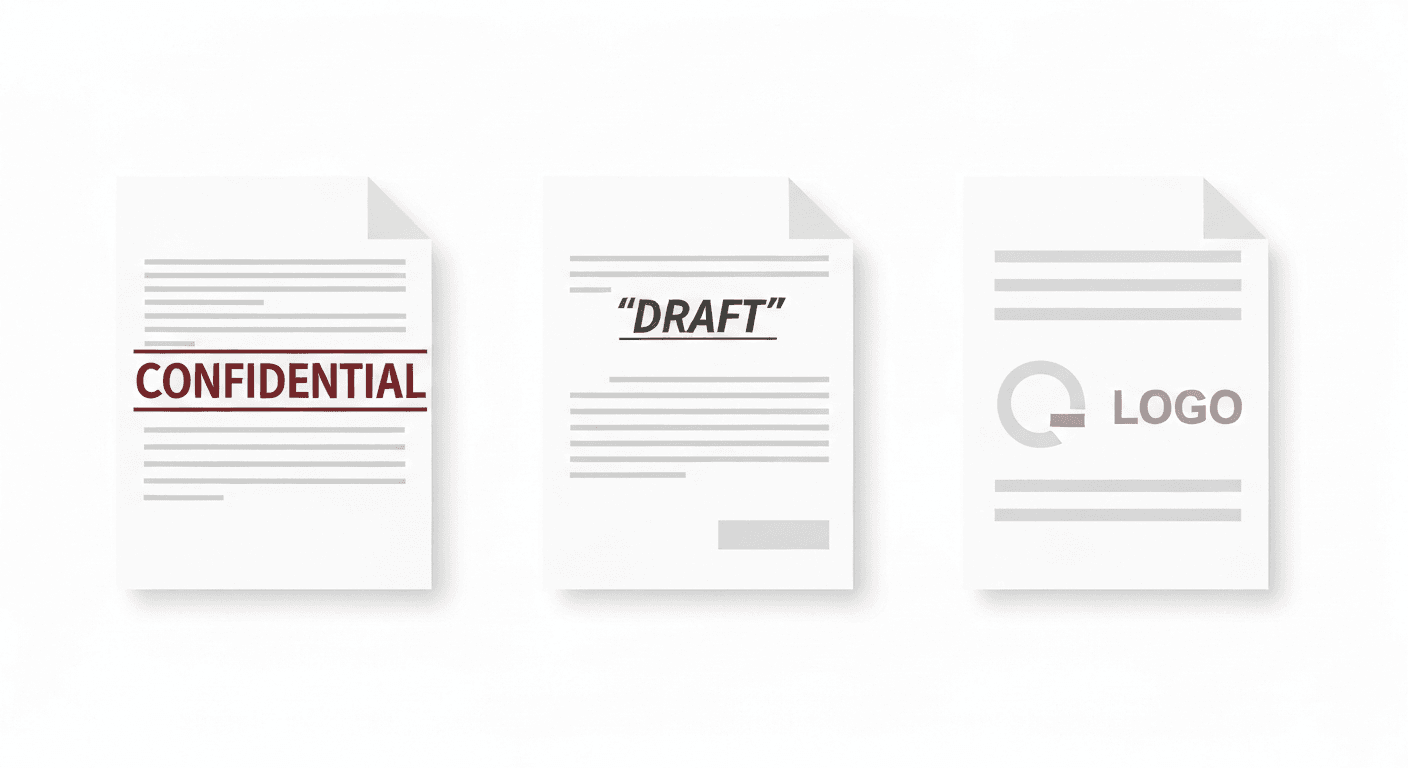
- CONFIDENTIAL — for internal documents or legal files shared with external parties.
- DRAFT — for work-in-progress documents sent for review.
- DO NOT COPY — for proprietary materials, price lists, or sensitive reports.
- SAMPLE — for portfolio work, proposals, or demo documents.
- Your company name or URL — for branded client deliverables.
Frequently asked questions
QCan I add a watermark to a PDF on iPhone without an app?
Yes. Open Safari and go to pdftoolz.io/tools/watermark-pdf. Upload your PDF, enter the watermark text, and download the result. No app download or account needed.
QHow do I add CONFIDENTIAL to a PDF on iPhone?
Go to pdftoolz.io/tools/watermark-pdf in Safari, upload the PDF, type 'CONFIDENTIAL' in the watermark text field, and tap 'Add Watermark'. The stamp is applied diagonally across every page.
QIs there a free PDF watermark app for iPhone?
Rather than installing an app, use pdftoolz.io directly in Safari — it is free and works without any installation. If you prefer a dedicated app, PDF Expert and Adobe Acrobat Reader offer watermark features but the free tiers are restricted.
QCan I add an image watermark (logo) to a PDF on iPhone?
The pdftoolz watermark tool supports text watermarks. For image or logo watermarks, you would need a tool that supports image overlays — check the watermark tool for the current feature set.
QDoes adding a watermark change the PDF content?
The watermark is added as a semi-transparent overlay on each page. The original text, images, and layout of the PDF remain unchanged. Only the watermark text is new.