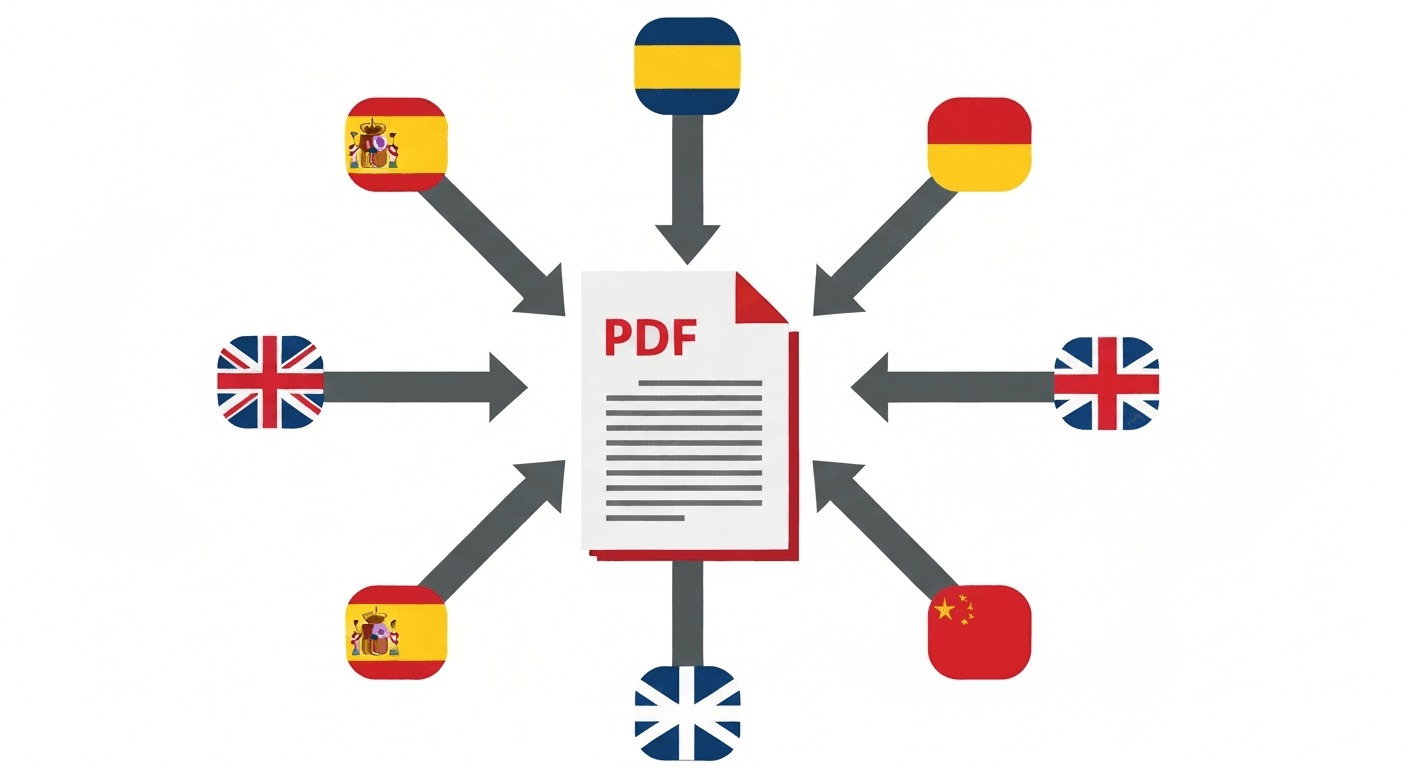
You receive a contract in German. A research paper in Chinese. A user manual in Japanese. Translating a PDF document manually — copying text, pasting into a translator, formatting the result — is tedious, slow, and loses all the original layout.
The right approach is to translate the entire PDF at once: upload, choose the target language, and download a translated version with the same structure. Here's how.
How to translate a PDF (step by step)
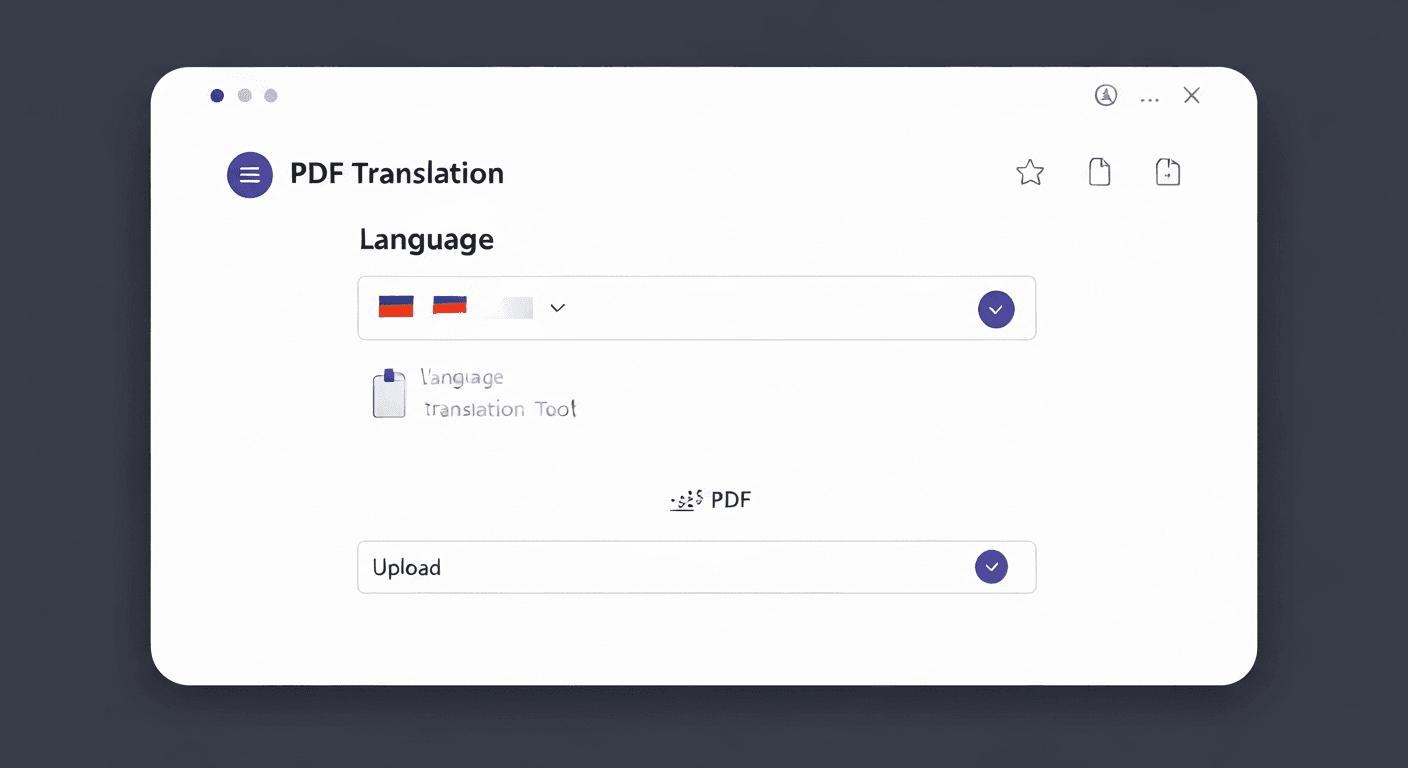
- 1Open the Translate PDF tool. No signup required.
- 2Upload your PDF. Drag and drop it or click to browse. Scanned PDFs may require OCR to extract text first.
- 3Select the target language. Choose from 50+ languages including Spanish, French, German, Italian, Portuguese, Chinese, Japanese, Arabic, and more.
- 4Click 'Translate'. The document is processed and translated.
- 5Download the translated PDF. The result preserves the original layout where possible.
Translated output: what to expect
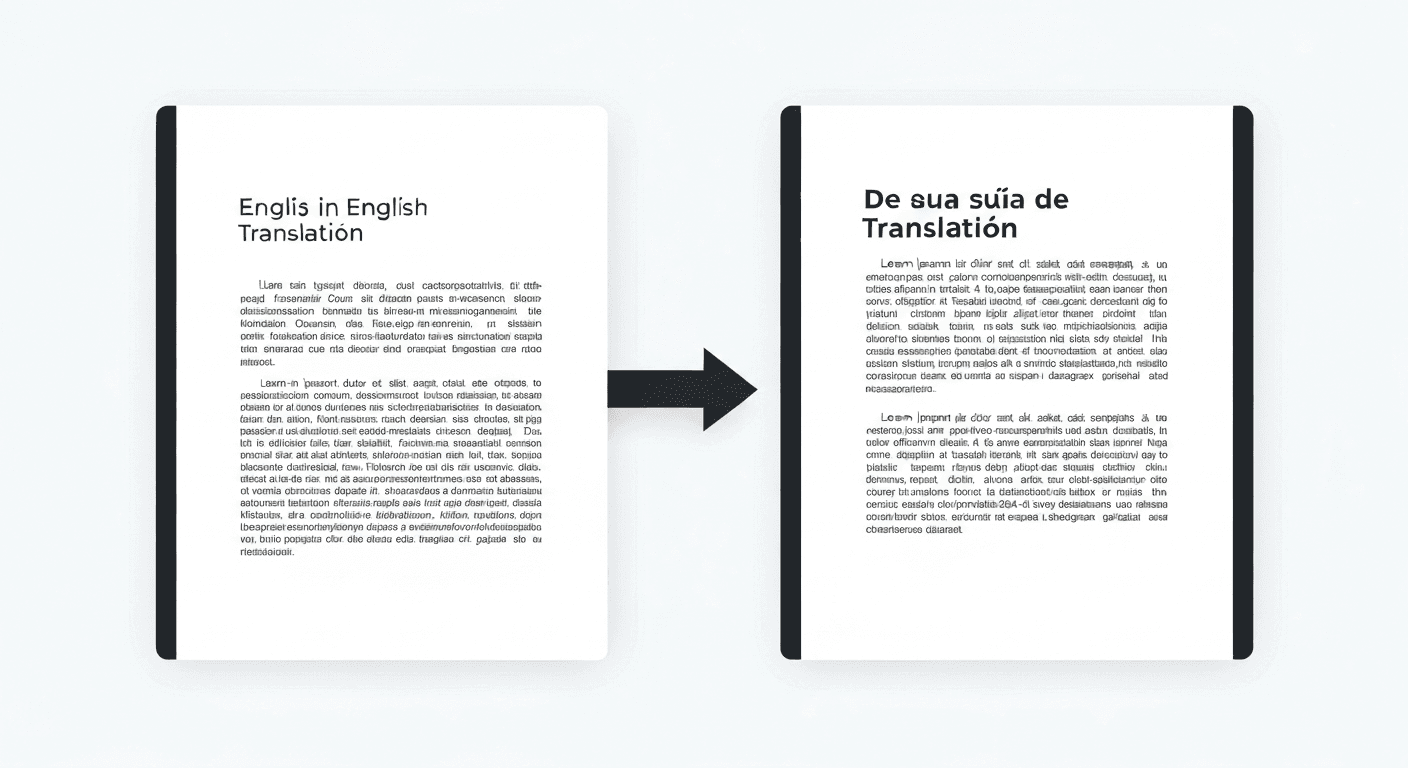
The translated PDF maintains the original paragraph structure and formatting where possible. Headings, bullet points, and body text are all translated. However, some complex layouts — multi-column designs, text inside images, or heavily styled tables — may not preserve perfectly.
Text embedded inside images or graphics is not translated, since it is stored as pixel data rather than editable text. For scanned documents, run OCR first to make the text extractable before translating.
Supported languages
- European: Spanish, French, German, Italian, Portuguese, Dutch, Polish, Swedish, Danish, Finnish, Norwegian, Czech, Romanian, Hungarian, and more.
- Asian: Chinese (Simplified and Traditional), Japanese, Korean, Vietnamese, Thai, Indonesian, Malay.
- Middle Eastern / Arabic script: Arabic, Hebrew, Persian (Farsi), Urdu.
- Other: Russian, Ukrainian, Greek, Turkish, and additional languages totalling 50+ supported.
When to use PDF translation vs other approaches
- Translate PDF tool: Best for getting a full document translated quickly. Preserves layout. Ideal for reports, contracts, and manuals.
- Google Translate (paste text): Good for short passages. No layout preservation. Tedious for long documents.
- DeepL: Higher translation quality for European languages. Supports document upload but has file size and usage limits on the free tier.
- Professional human translator: Best for legally binding documents, certified translations, or high-stakes content where accuracy is critical.
Frequently asked questions
QCan I translate a scanned PDF?
Scanned PDFs contain images of text, not real text, so the translation tool may not extract content from them directly. For best results, run the OCR PDF tool first to convert the scanned text into real editable text, then translate.
QDoes the translation preserve the original formatting?
For most standard documents (text-based reports, contracts, articles), yes. Complex multi-column layouts, text inside images, or highly stylized designs may not preserve perfectly after translation.
QHow accurate is the machine translation?
For most European language pairs (e.g. English ↔ Spanish, French, German), machine translation is generally good enough for comprehension and business use. For legally binding contracts or certified translations, use a professional human translator.
QWhat languages can I translate a PDF into?
The tool supports 50+ languages including all major European languages, Chinese, Japanese, Korean, Arabic, Russian, and more. Select the target language from the dropdown when uploading.
QIs there a file size limit for PDF translation?
Free users can translate PDFs up to 10 MB. Larger documents may take longer to process depending on page count and content complexity.