A 40-page report where you only need pages 3 to 15. A scanned document with a blank page in the middle. A contract with an outdated appendix. Whatever the reason, removing pages from a PDF is something most people need to do regularly — and it should take less than a minute.
This guide explains exactly how to delete pages from a PDF using a free online tool, on any device.
How to remove pages from a PDF (step by step)
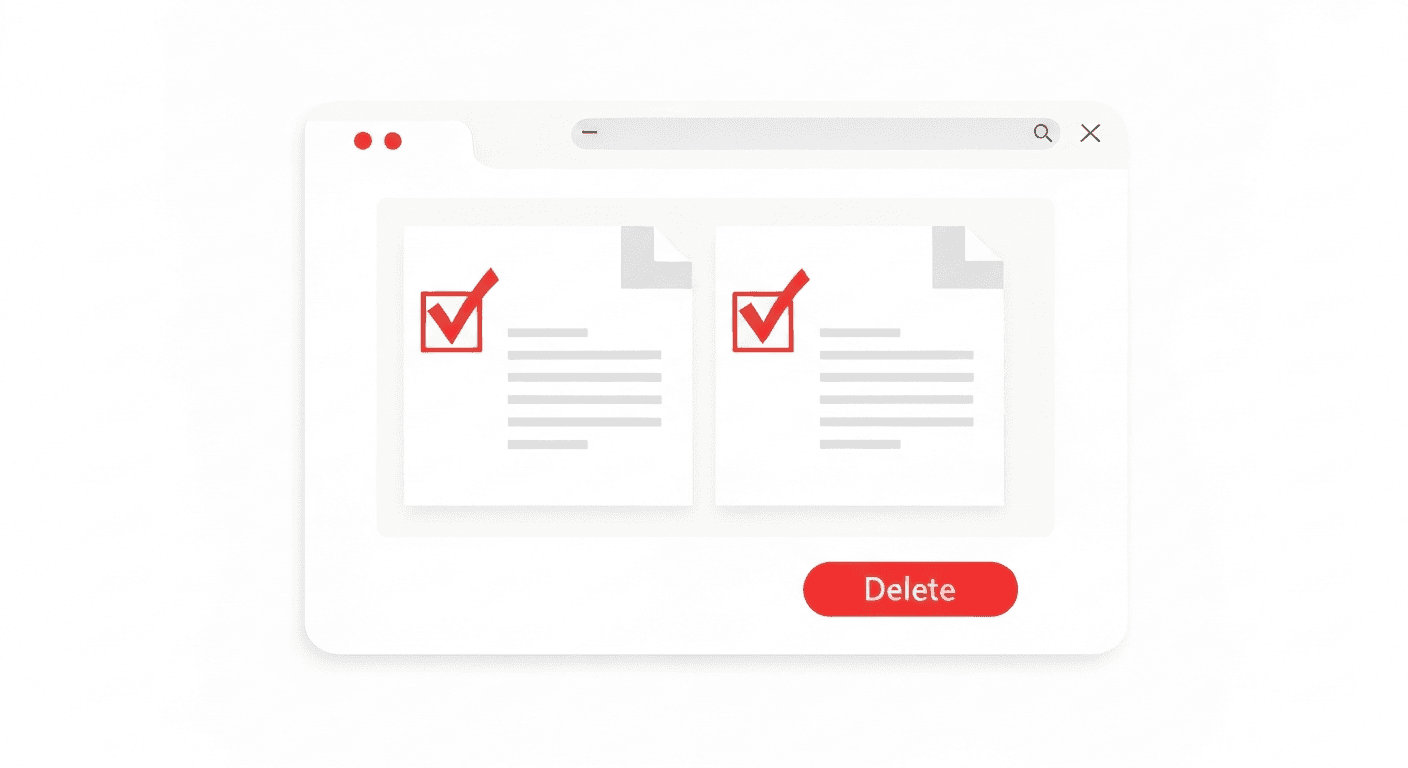
- 1Open the Remove Pages tool. No account required.
- 2Upload your PDF. Drag and drop it onto the page or click to browse your files.
- 3Select pages to remove. Click the thumbnails of the pages you want to delete. Selected pages are highlighted.
- 4Click 'Remove pages'. The selected pages are permanently deleted from the document.
- 5Download the result. Your trimmed PDF downloads immediately.
Before and after: what removing pages looks like
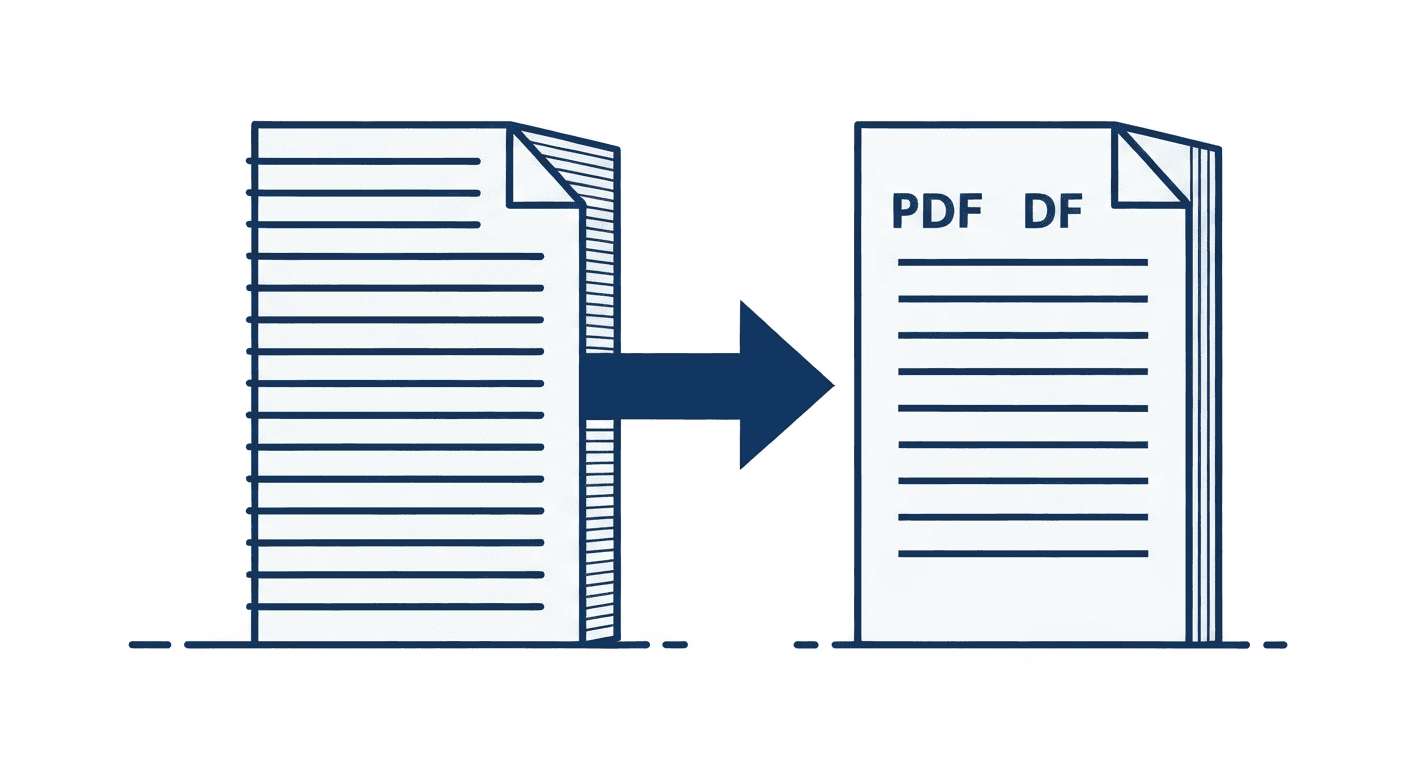
When pages are removed, all remaining pages keep their original content, formatting, fonts, images, and layout completely unchanged. Page numbers embedded in the document's header or footer are not automatically renumbered — if you need sequential page numbers after removing pages, run the result through the Add Page Numbers tool.
The file size also decreases proportionally — removing 5 out of 10 pages roughly halves the file size.
How to remove pages from a PDF on iPhone or Android
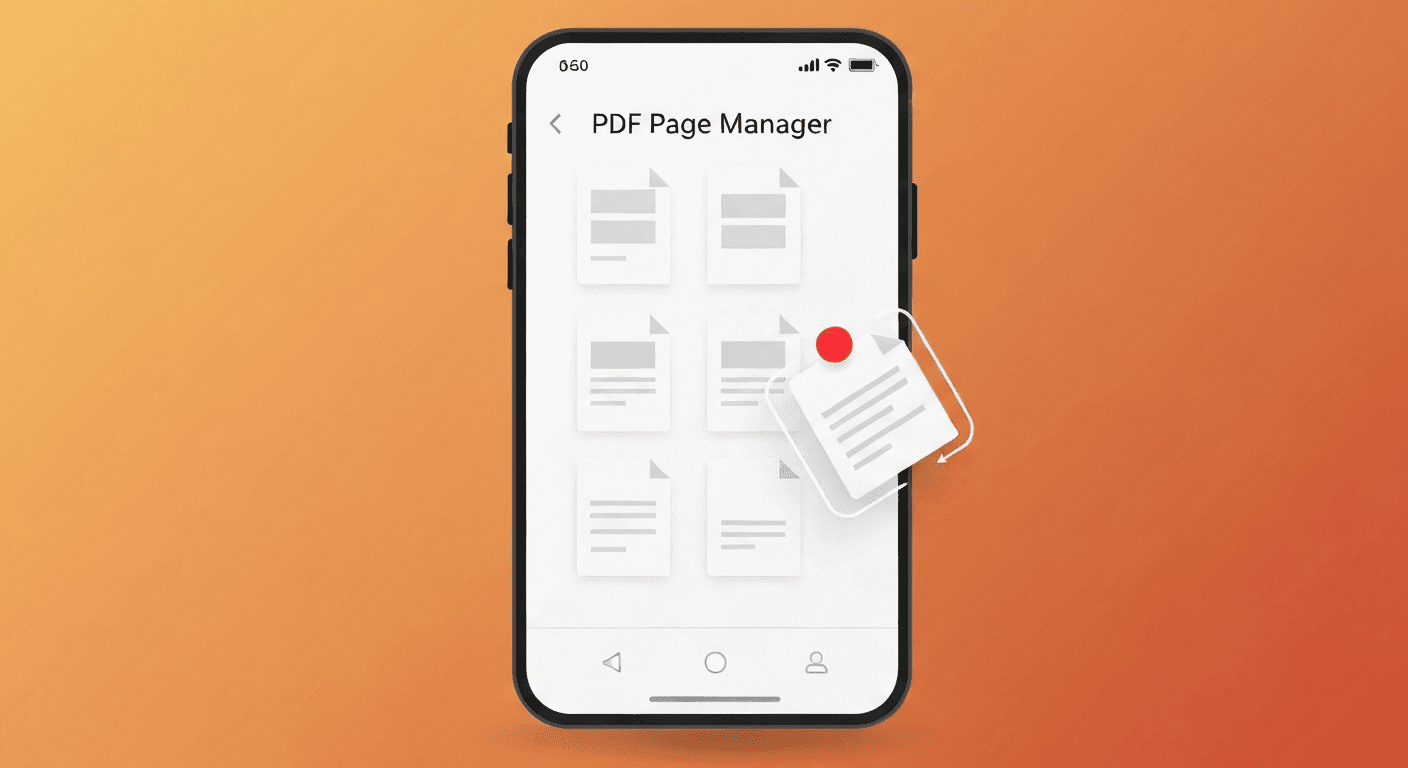
The Remove Pages tool works entirely in your mobile browser. On iPhone, open Safari and go to pdftoolz.io/tools/remove-pages. Tap 'Choose file', select your PDF from the Files app or iCloud Drive, tap the page thumbnails you want removed, then tap 'Remove pages' and download.
On Android with Chrome, the same process applies. You can upload from Google Drive, local storage, or any document app.
When to use Remove Pages vs other tools
- Remove Pages: You want to delete specific pages and keep the rest as one document.
- Split PDF: You want to separate the PDF into multiple documents (e.g. one document per chapter).
- Extract Pages: You want to pull out specific pages into a new, separate PDF while keeping the original.
- Merge PDF: You want to combine multiple PDFs into one — the opposite of splitting.
Frequently asked questions
QCan I remove multiple pages at once?
Yes. Select as many page thumbnails as you want before clicking 'Remove pages'. You can delete any number of pages in a single operation.
QWill removing pages affect the remaining content?
No. All remaining pages are completely unchanged — text, images, fonts, layout, hyperlinks, and annotations are preserved exactly as they were in the original.
QHow do I remove pages from a PDF on a Mac?
Use pdftoolz.io/tools/remove-pages in Safari or Chrome. Alternatively, open the PDF in macOS Preview, select the page thumbnails you want to delete in the sidebar, and press the Delete key. Then save the file.
QHow do I remove a blank page from a PDF?
Upload the PDF to the Remove Pages tool, click the thumbnail of the blank page to select it, and click 'Remove pages'. The blank page is permanently deleted from the document.
QDoes removing pages reduce file size?
Yes. Removing pages reduces the file size proportionally — roughly in line with how many pages you remove relative to the total. An image-heavy page may reduce the size more than a text-only page.