Signing a PDF on Android used to mean emailing it to yourself, printing it, signing it physically, scanning it back, and emailing it again. Now you can do it entirely on your phone — for free — in under a minute. This guide covers the three best methods for signing PDFs on Android without a paid subscription.
Method 1 — Sign PDF online in Chrome (no app required)
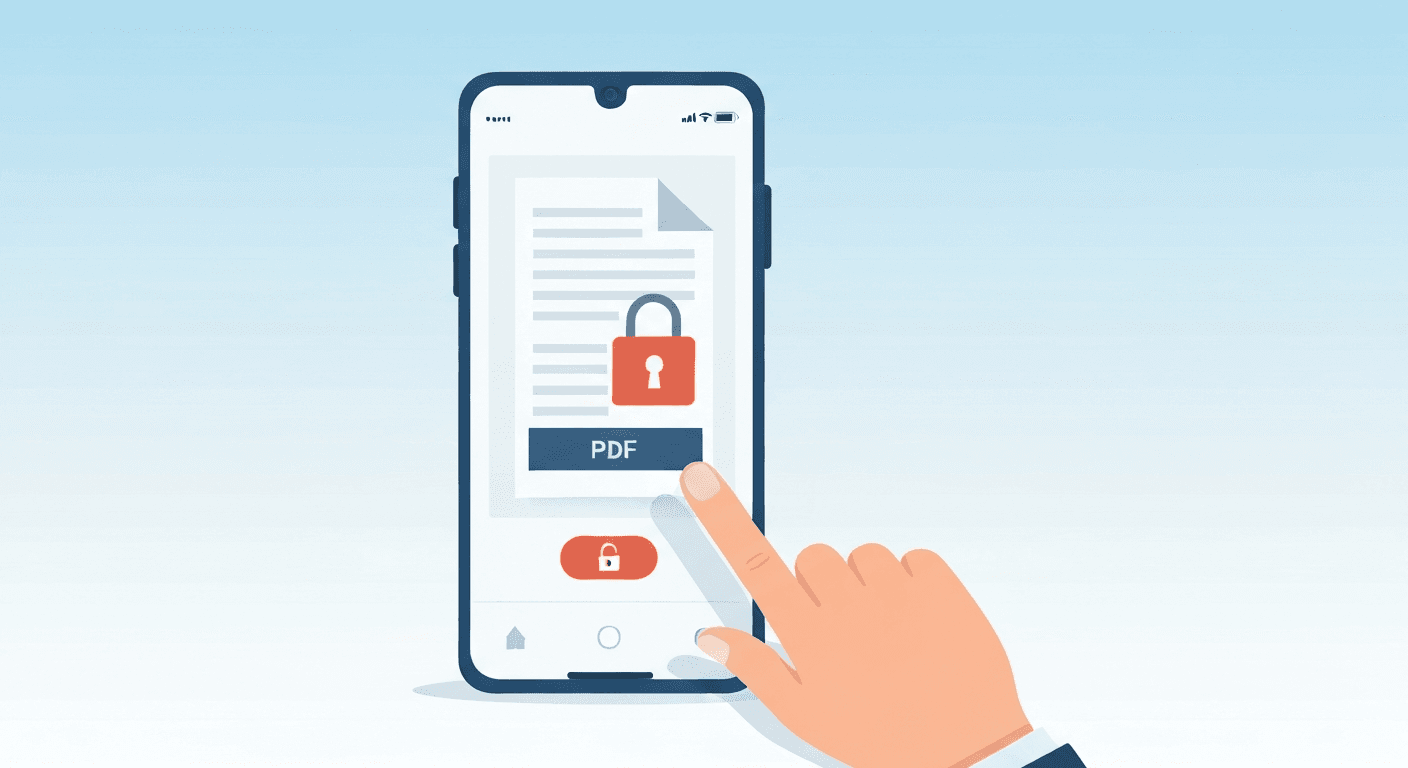
- Open Chrome on Android and go to pdftoolz.io/tools/sign-pdf.
- Upload your PDF from your phone's storage.
- Draw your signature with your finger on the touch screen signature pad.
- Drag the signature to the correct position on the document.
- Tap 'Apply' and download the signed PDF.
Method 2 — Adobe Acrobat Reader (free app)
- Install Adobe Acrobat Reader from the Play Store (free).
- Open the PDF in Acrobat Reader.
- Tap the pencil/edit icon at the bottom of the screen.
- Select 'Fill & Sign' then tap 'Sign yourself'.
- Create or import your signature and place it on the document.
- Save and share the signed PDF.
Method 3 — Google Drive (for Drive-stored PDFs)
- Open Google Drive on Android and find the PDF.
- Tap the three-dot menu next to the file and select 'Open with → Adobe Acrobat'.
- Follow the Adobe sign steps above to add your signature.
- Save the signed document back to Drive.
Drawn signature vs. digital signature — what is the difference?
A drawn signature (what all three methods above produce) is a visual image of your signature placed on the PDF page. It looks like a physical ink signature but does not carry a cryptographic certificate — anyone could replicate it.
A digital signature (also called an electronic signature or e-signature) uses a cryptographic certificate to verify the signer's identity and detect document tampering. This is required for legally binding contracts in many jurisdictions. Services like DocuSign, Adobe Sign, or national government eID systems provide this. For most everyday documents — approving a form, signing a receipt, annotating a report — a drawn signature is sufficient.
Frequently asked questions
QHow do I electronically sign a PDF on Android for free?
Open Chrome and go to pdftoolz.io/tools/sign-pdf, upload the PDF, draw your signature, place it, and download. Free, no signup, no app needed. Alternatively, use the free Adobe Acrobat Reader app from the Play Store.
QIs it legal to sign a PDF with a drawn signature on Android?
In most countries, a drawn electronic signature on a PDF is legally equivalent to a handwritten signature for most types of documents. For contracts requiring certified digital signatures (like land transfers or legal filings), you need a qualified electronic signature from an accredited provider.
QCan I sign a PDF on Android without installing an app?
Yes. Use pdftoolz.io/tools/sign-pdf in Chrome — no app installation required. You draw your signature on the screen and download the signed PDF.
QHow do I add my signature to a PDF on Android?
Use the pdftoolz sign tool: open Chrome, go to pdftoolz.io/tools/sign-pdf, upload the PDF, draw your signature on the signature pad, drag it to the correct position, and download.
QCan I use a photo of my signature to sign a PDF on Android?
Some sign tools allow you to upload an image of your signature (a photo of your physical signature on white paper). The pdftoolz sign tool provides a touch signature pad — draw directly with your finger for the cleanest result.