
Sideways or upside-down PDF pages are a common problem — they usually happen when a document is scanned at the wrong orientation, when a PDF is exported from a presentation with different slide layouts, or when a mobile document camera captures pages held at an angle.
On Android, you can fix this without installing any app. A browser-based PDF rotation tool works directly in Chrome and handles both individual page rotation and full-document rotation.
How to rotate a PDF on Android
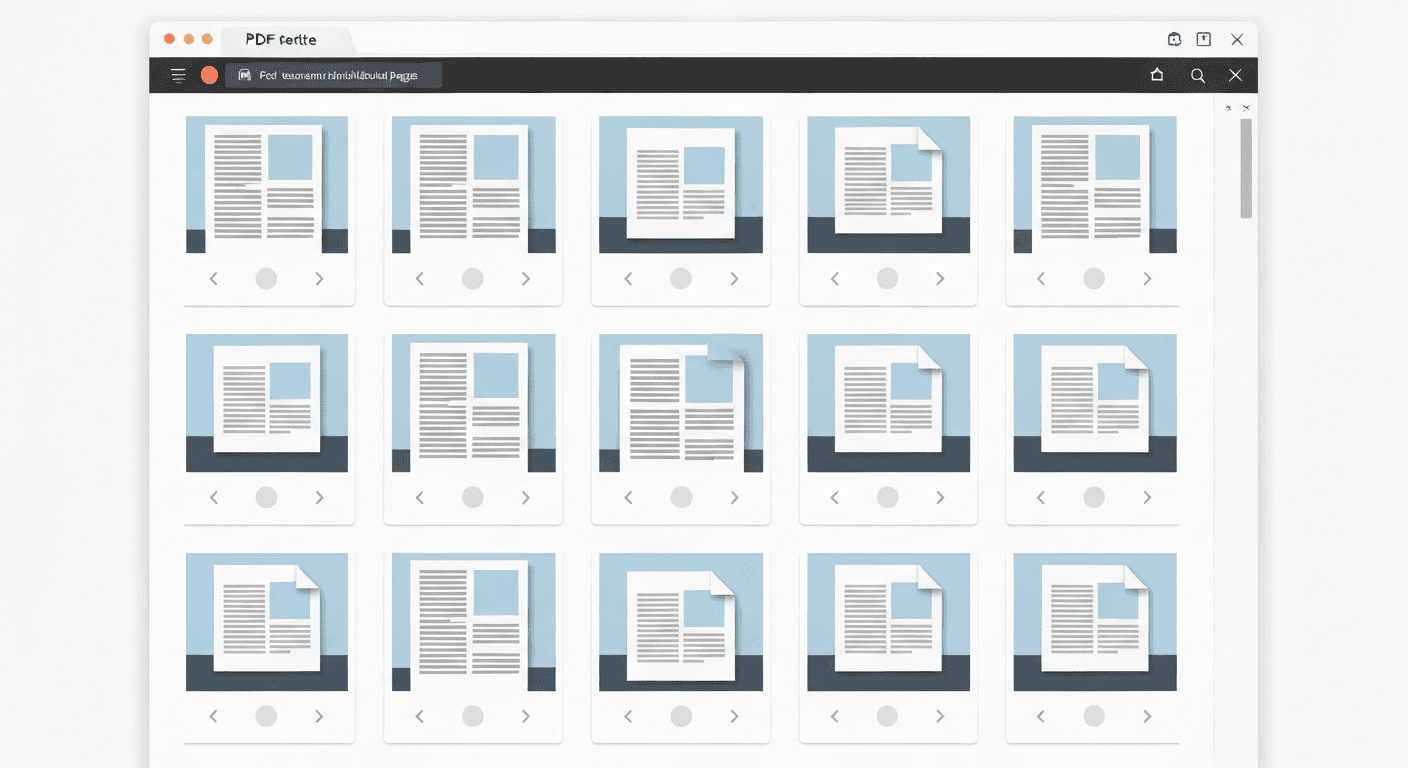
- 1Open Chrome on Android and go to pdftoolz.io/tools/rotate-pdf.
- 2Tap 'Choose File' and select your PDF from storage.
- 3Choose rotation: tap the rotate left or rotate right arrow under each page thumbnail to rotate 90° at a time. Tap twice for 180°.
- 4Rotate all pages at once: use the 'Rotate all' button if all pages need the same correction.
- 5Tap 'Rotate PDF' and download the corrected file.
Can I rotate a PDF permanently on Android?
Many Android PDF viewers (including Google PDF Viewer and Samsung's built-in viewer) let you rotate the display temporarily — but the rotation resets when you close and reopen the file. This is a viewing rotation, not a permanent fix.
To permanently rotate PDF pages on Android, use a tool that saves the rotation into the file itself. pdftoolz does this: the downloaded PDF opens at the correct orientation in every viewer, on every device, without any temporary rotation setting.
Rotating a scanned PDF on Android
Scanned PDFs are image-based, which means the page orientation is literally the orientation of the image. Rotating a scanned PDF page permanently corrects the image itself within the PDF structure.
After rotation, the scanned text may still not be searchable (because it is an image). If you need searchable text in a correctly-oriented scanned document, run OCR after rotating: pdftoolz.io/tools/ocr-pdf.
Frequently asked questions
QHow do I permanently rotate a PDF on Android?
Open Chrome and go to pdftoolz.io/tools/rotate-pdf. Upload the PDF, rotate each page as needed, and download. The rotation is saved permanently into the file — it will display correctly in all viewers.
QCan I rotate just one page of a PDF on Android?
Yes. The pdftoolz rotate tool shows thumbnails of every page. You can rotate individual pages independently — useful when a single page is sideways but the rest of the document is correct.
QHow do I rotate a PDF on Android without an app?
Use pdftoolz.io/tools/rotate-pdf in Chrome — no app installation required. Upload, rotate, download. The entire process runs in your browser.
QWhy does my PDF look rotated on Android but normal on desktop?
Some PDF viewers honour a rotation preference in the PDF metadata while others ignore it. If the page appears rotated on some devices, permanently rotating it via a tool like pdftoolz ensures consistent display everywhere.
QCan I rotate a PDF on Android for free?
Yes — pdftoolz.io/tools/rotate-pdf is completely free with no signup required. There are no daily limits or watermarks on the output.