
You open a PDF and find that some pages are rotated sideways — landscape when they should be portrait, or upside down entirely. This happens with scanned documents, presentations saved as PDF, and files created from different sources. It is also one of the easiest problems to fix.
Here's how to rotate PDF pages using a free online tool, without any software.
How to rotate pages in a PDF (step by step)
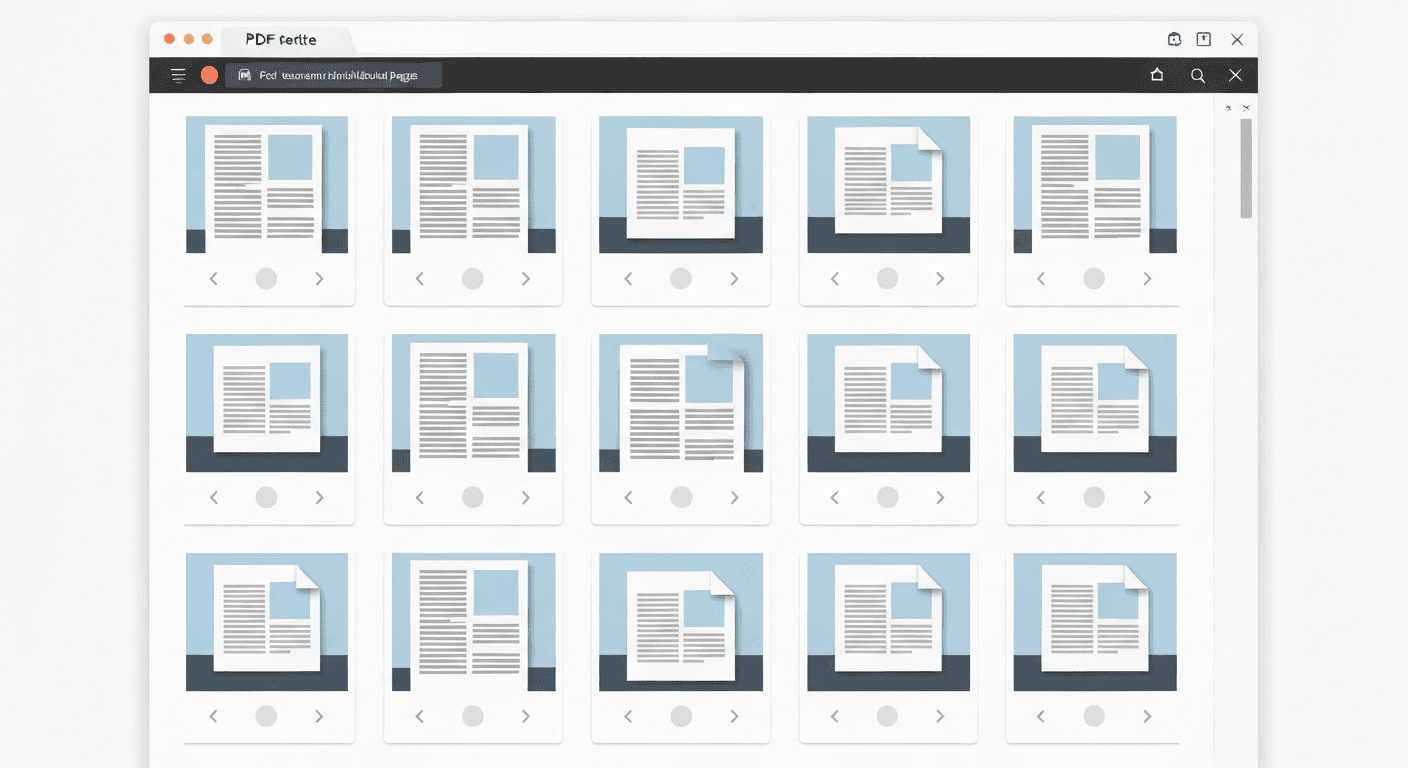
- 1Open the Rotate PDF tool. No signup or account needed.
- 2Upload your PDF. Drag and drop the file onto the page or click to browse.
- 3Select rotation. Rotate all pages at once, or click individual page thumbnails to rotate specific pages only. Choose 90° clockwise, 90° counter-clockwise, or 180°.
- 4Click 'Rotate PDF'. The new orientation is applied.
- 5Download the result. Your corrected PDF is ready instantly.
Before and after: fixing sideways pages
Rotating pages is completely non-destructive. The content of each page — text, images, layout — remains unchanged. Only the viewing orientation is updated. This means all text stays selectable, all links stay clickable, and the file can be opened in any PDF reader without issues.
If you're rotating a scanned document, keep in mind that the scan quality stays the same. If the original scan is blurry or low-resolution, rotation will not improve the sharpness.
Why do PDF pages end up in the wrong orientation?
- Scanned documents: The paper was placed sideways or upside down in the scanner.
- Mixed-source PDFs: A document assembled from multiple PDFs where some were landscape and others portrait.
- Presentation exports: PowerPoint or Keynote slides saved as PDF, which are inherently landscape.
- Mobile uploads: Photos taken with a phone may embed orientation metadata that different software interprets inconsistently.
Frequently asked questions
QCan I rotate just one page in a PDF?
Yes. Click the thumbnail of the specific page you want to rotate to select it, then apply the rotation. Only the selected pages will be affected.
QDoes rotating a PDF page affect the text quality?
No. Rotation is a metadata change — the PDF structure is updated to display the page at a different angle, but nothing is re-rendered or compressed. Text remains fully selectable and sharp.
QHow do I rotate a PDF on a Mac without Acrobat?
Use pdftoolz.io/tools/rotate-pdf in any browser. Alternatively, macOS Preview supports rotation: open the PDF, select pages in the sidebar, and use Tools → Rotate Left or Rotate Right.
QWhy does my PDF look rotated in one app but correct in another?
Some PDF readers respect the PDF's rotation metadata and display accordingly; others may ignore it. Using the Rotate PDF tool permanently bakes the correct orientation into the file so it displays correctly everywhere.
QCan I rotate a PDF on my phone?
Yes. The Rotate PDF tool works in any mobile browser on iPhone (Safari) or Android (Chrome). Upload the PDF from your files or camera roll, select the rotation, and download.