Blank pages are one of the most annoying PDF problems. They show up in scanned documents (when the scanner captures blank reverse sides), in Word or Excel exports (when a page break lands at the end), in forms (where unused pages are left empty), and in merged PDFs (where two documents combined leave a gap).
Removing them manually by printing and re-scanning is not an option. Here is how to do it properly in under a minute, for free.
How to remove blank pages from a PDF (step by step)
- 1Open pdftoolz.io/tools/remove-pages in your browser.
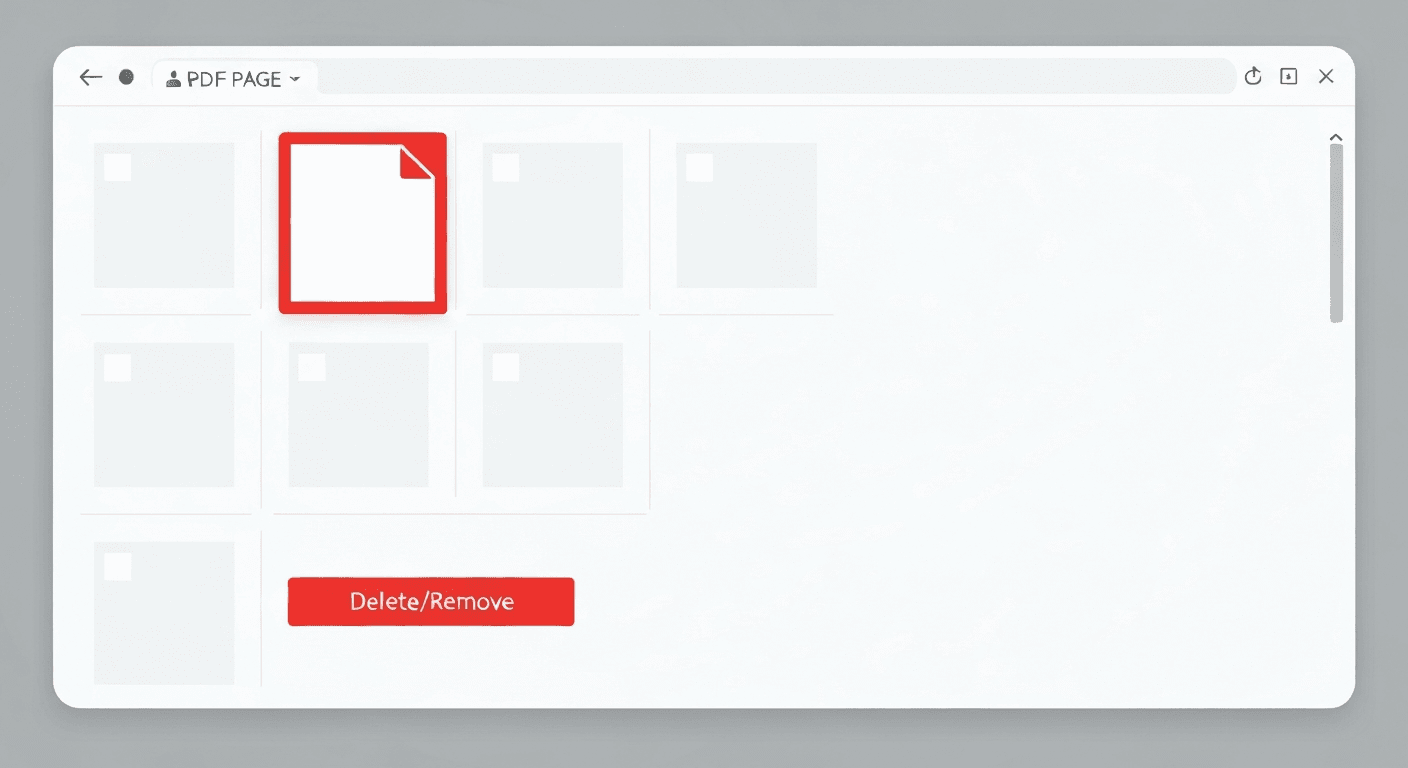
- 2Upload your PDF. The tool displays thumbnail previews of every page.
- 3Identify the blank pages. Blank pages appear as white thumbnails — they are easy to spot in the grid view.
- 4Click the blank pages to select them. Selected pages are highlighted.
- 5Click 'Remove pages' and download the cleaned PDF.
How to remove blank pages from a scanned PDF
Scanned PDFs are the most common source of blank pages. When you scan a two-sided document on a single-sided scanner — or when a duplex scanner captures the blank back of the last page — every second page may be blank.
The Remove Pages tool works identically for scanned PDFs. Page thumbnails are generated from the image content of each page, so blank scanned pages appear as white thumbnails just like blank text pages. Select and delete them the same way.
Other ways blank pages appear — and how to prevent them
- 1Word/Excel exports: A stray paragraph mark or row below the last content forces an extra page. In Word, enable formatting marks (Ctrl+Shift+8) and delete the last empty paragraph before exporting.
- 2Merged PDFs: When merging an odd-page document with another, the combined file may have a blank page in the middle. Remove it after merging.
- 3Form templates: PDF forms often include blank reserved pages. Remove them if they are not needed before sending.
- 4Duplex scanning: If your scanner has a duplex setting, disable it for single-sided documents to avoid capturing blank reverse pages.
Frequently asked questions
QHow do I delete blank pages from a PDF on Mac?
Open the PDF in macOS Preview, go to View → Thumbnails to see the page panel, click the blank page to select it, then press Delete. Alternatively, use pdftoolz.io/tools/remove-pages in Safari for a faster experience with visual thumbnails.
QHow do I remove blank pages from a PDF in Adobe Reader?
Adobe Reader (the free version) cannot edit or delete PDF pages. You need Adobe Acrobat Pro for that. As a free alternative, use pdftoolz.io/tools/remove-pages — it requires no software installation.
QCan I remove blank pages from a scanned PDF?
Yes. The pdftoolz Remove Pages tool generates thumbnails from all PDF content including scanned images. Blank scanned pages appear as white thumbnails and can be selected and deleted like any other page.
QHow do I remove all blank pages at once?
In the pdftoolz Remove Pages tool, you can select multiple pages at once by clicking each blank thumbnail. For a large document with many blank pages, select them all before clicking 'Remove pages'.
QWhy does my PDF have blank pages after export from Word?
The most common cause is an empty paragraph at the end of the last content page forcing a new page break. In Word, turn on formatting marks (Ctrl+Shift+8 / ⌘+8 on Mac) and delete the last empty paragraph. For PDFs already exported, use the Remove Pages tool.