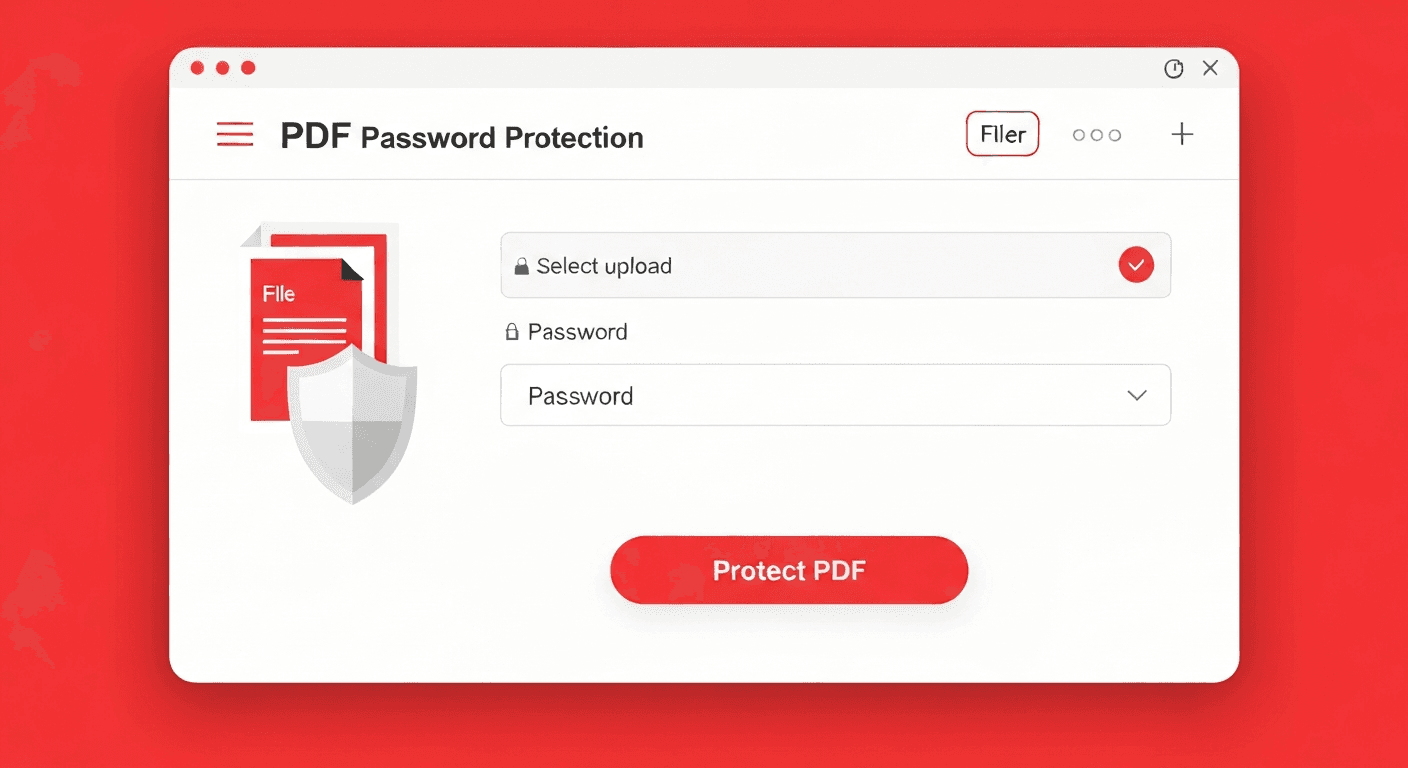
A fillable PDF form contains interactive fields — text boxes, checkboxes, dropdowns, and signature areas. Once you have filled in the form, you often need to 'flatten' it: convert it into a static PDF where the filled values are permanently embedded as regular content and the fields are no longer interactive.
Why flatten? Because interactive PDF forms can be edited by anyone who receives them. Flattening prevents tampering, ensures the values print correctly in all PDF viewers, and reduces file size by removing the form field metadata.
How to flatten PDF form fields online (step by step)
- 1Fill in your PDF form using any PDF viewer (Adobe Reader, Chrome, macOS Preview, etc.).
- 2Save the filled form to your computer.
- 3Open pdftoolz.io/tools/edit-pdf or use the PDF to PDF export option.
- 4Upload the filled form PDF.
- 5Download the flattened PDF. All field values are now permanently part of the page — no interactive elements remain.
What is the difference between a filled and a flattened PDF?
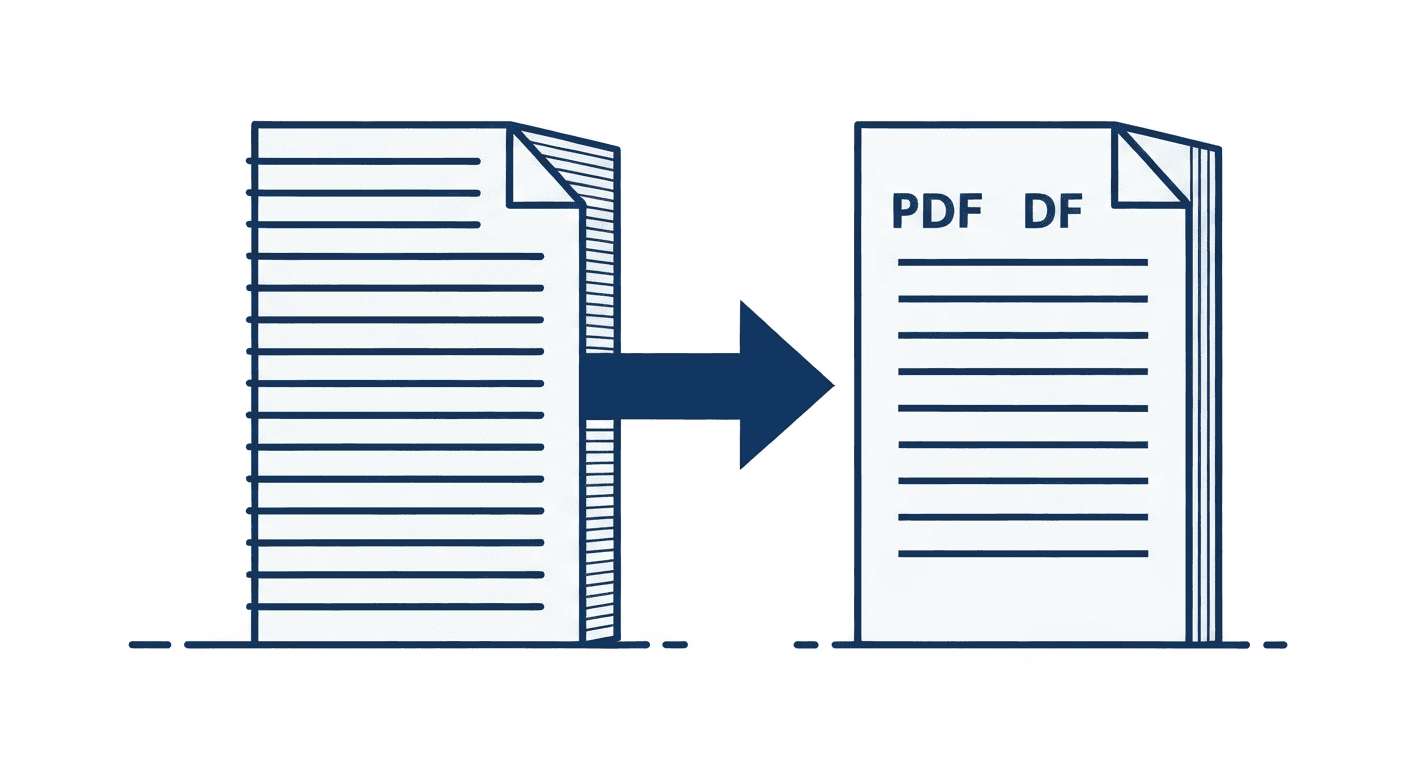
A filled PDF is an interactive form with data entered into its fields. The data is stored in the PDF's AcroForm layer — it is editable, and some viewers display it differently depending on settings. If you email a filled interactive PDF to someone using a different PDF viewer, the filled values may not display correctly.
A flattened PDF has no interactive layer. The text you typed, the boxes you checked, and the signatures you placed are burned directly into the page content as regular static elements. It looks the same in every PDF viewer, cannot be changed by the recipient, and behaves like a printed document.
When should you flatten a PDF form?
- Before sending signed contracts: Prevents recipients from altering field values.
- Before archiving forms: Ensures the content displays correctly in all future PDF viewers.
- Before printing: Some printers and RIP systems do not render interactive fields correctly. Flattening guarantees accurate printout.
- Before uploading to portals: Government portals, HR systems, and document management systems often require flat PDFs.
- To reduce file size: Removing the AcroForm layer and embedded JavaScript can significantly reduce file size for complex forms.
Frequently asked questions
QHow do I flatten a PDF form for free without Adobe?
Use pdftoolz.io — upload your filled PDF form, process it, and download the flattened version. No Adobe Acrobat required. The tool permanently embeds all form field values into the page content.
QWhat does flattening a PDF do?
Flattening removes the interactive form layer from a PDF and merges all filled-in values into the static page content. The result looks identical but cannot be edited. It also ensures consistent display across all PDF viewers.
QCan I flatten a PDF form in Adobe Reader?
No — Adobe Reader (the free version) cannot flatten forms. You need Adobe Acrobat Pro ($20–$30/month) or a free online tool like pdftoolz.
QDoes flattening a PDF remove the signature?
No — flattening embeds the signature as a static image or graphic on the page. The visual signature is preserved. However, digital certificate-based signatures (not typed/drawn signatures) may be affected — check the specific certificate requirements for your use case.
QCan I flatten a PDF on iPhone or Android?
Yes — open pdftoolz.io in your mobile browser, upload the PDF, flatten it, and download. No app installation needed.