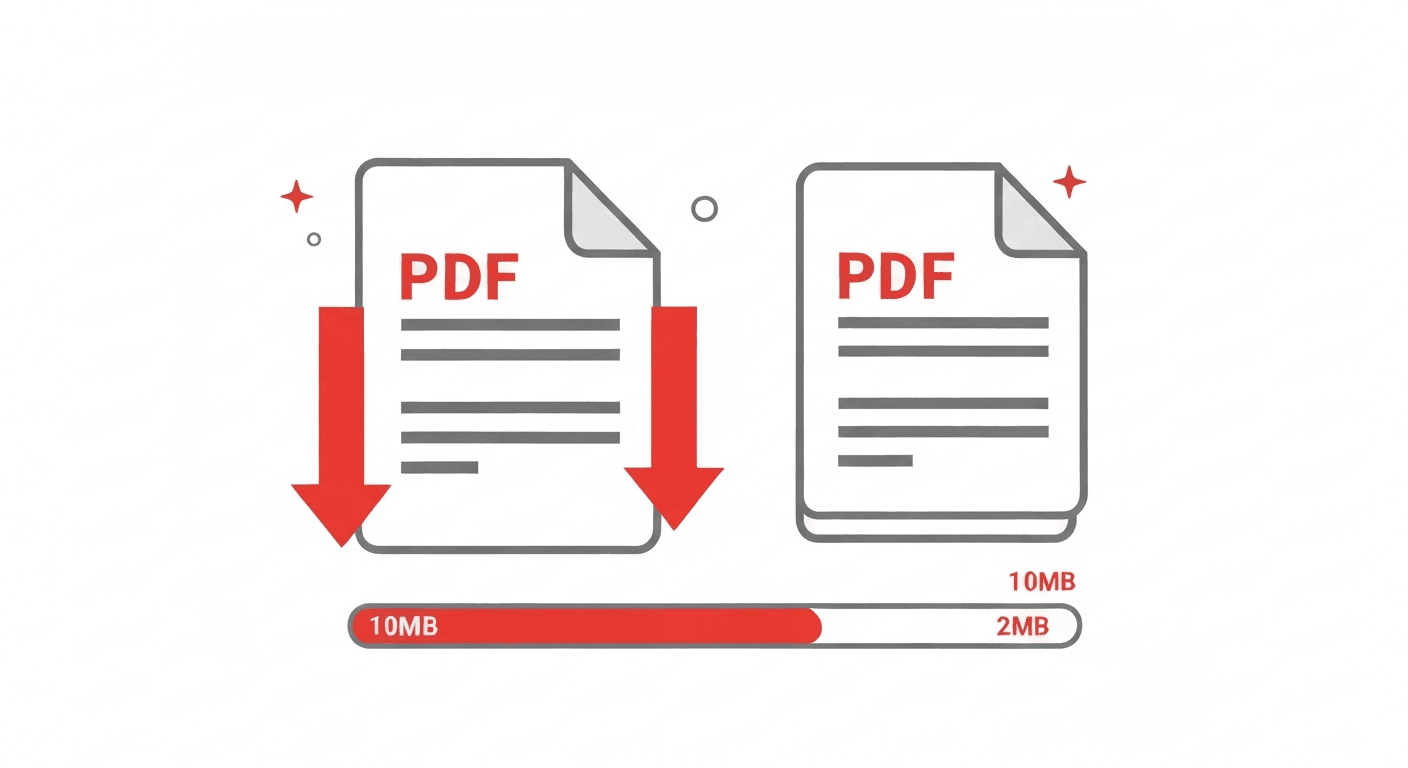
Large PDFs cause problems on iPhone: they are too big to attach to emails, exceed WhatsApp's 100 MB limit, fill up your iCloud storage, and take forever to upload or download. The solution is to compress them — and you can do it on iPhone without installing any new app.
The method covered here runs entirely in Safari. It takes about 30 seconds and can reduce most PDFs by 50–90% in size.
How to compress a PDF on iPhone (step by step)
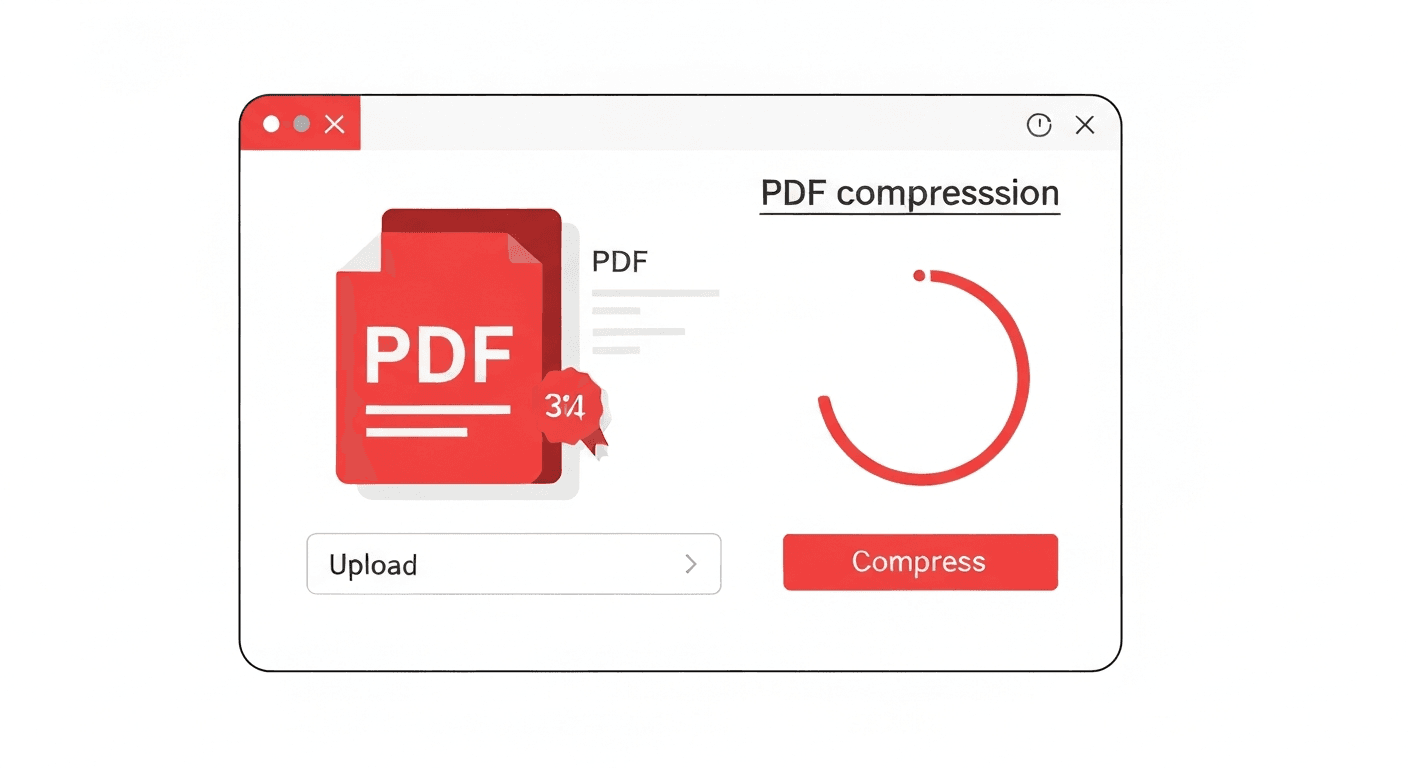
- 1Open Safari on your iPhone and go to pdftoolz.io/tools/compress-pdf.
- 2Tap 'Choose File' and select the PDF from your Files app or iCloud Drive.
- 3Choose compression level: 'Recommended' reduces most PDFs by 50–70%. 'Strong' goes further, up to 90% reduction.
- 4Tap 'Compress PDF' and wait — usually under 15 seconds.
- 5Tap 'Download' — the compressed PDF saves to your Downloads folder in the Files app.
How to compress a PDF on iPhone without an app
The browser method above requires no app installation. Safari on iOS supports file uploads and downloads just like a desktop browser — you can select PDFs from the Files app, iCloud Drive, Dropbox, Google Drive, or any connected storage service.
After downloading, the compressed PDF is in your Files app under Downloads. Tap and hold it to rename, share, or move it to another folder.
How to reduce PDF size on iPhone with the Files app
The Files app on iOS 16 and later has a built-in 'Quick Actions → Create PDF' option — but this only converts images to PDF. It does not compress existing PDFs. Apple's built-in PDF export (via the Print dialog) also does not offer a compression option.
For actual compression, a dedicated tool is the only reliable way. The browser-based approach above is the fastest option that requires no new apps.
When to compress a PDF on iPhone
- Before sending via email: most email providers limit attachments to 20–25 MB. Compress first to avoid bounced emails.
- Before sharing on WhatsApp: WhatsApp limits documents to 100 MB. Large scanned PDFs often exceed this.
- Before uploading to a portal: government portals, job application systems, and university portals often have file size limits of 5–10 MB.
- To free up iCloud storage: compressing large PDFs in your iCloud Drive reclaims space without deleting files.
- Before AirDropping: smaller files transfer faster even over AirDrop.
Frequently asked questions
QHow do I reduce a PDF file size on iPhone?
Open Safari and go to pdftoolz.io/tools/compress-pdf. Upload the PDF, choose compression level, and download the smaller version to your Files app. No app installation required.
QHow do I compress a PDF on iPhone for free?
Use pdftoolz.io/tools/compress-pdf in Safari — it is completely free, no signup needed. Most PDFs are compressed 50–90% in size with no visible quality loss.
QCan I compress a PDF on iPhone without losing quality?
Yes. The 'Recommended' compression level reduces image resolution to screen-optimised levels. Text, vector graphics, and document structure are untouched. The visual difference is not noticeable at normal reading zoom.
QHow do I make a PDF smaller on iPhone for email?
Open pdftoolz.io/tools/compress-pdf in Safari, upload the PDF, select 'Recommended' compression, download, and attach the compressed version to your email. Gmail, Outlook, and Apple Mail all support PDFs under 25 MB as attachments.
QDoes iPhone have a built-in PDF compressor?
No. iOS does not include a native PDF compression tool. The Files app can create PDFs from images but cannot reduce the size of existing PDFs. A browser-based tool or dedicated app is required.