People try to compress PDFs using Google Docs because it is already open in their browser and it seems like an obvious place to start. The truth is: Google Docs is not a PDF compressor, and using it as one produces unpredictable results. Sometimes the re-exported PDF is smaller. Often it is the same size. Occasionally it is larger.
This guide explains exactly what happens when you use Google Docs to reduce PDF size, when it helps, and the far more reliable free alternative when you actually need the file smaller.
The Google Docs method — step by step
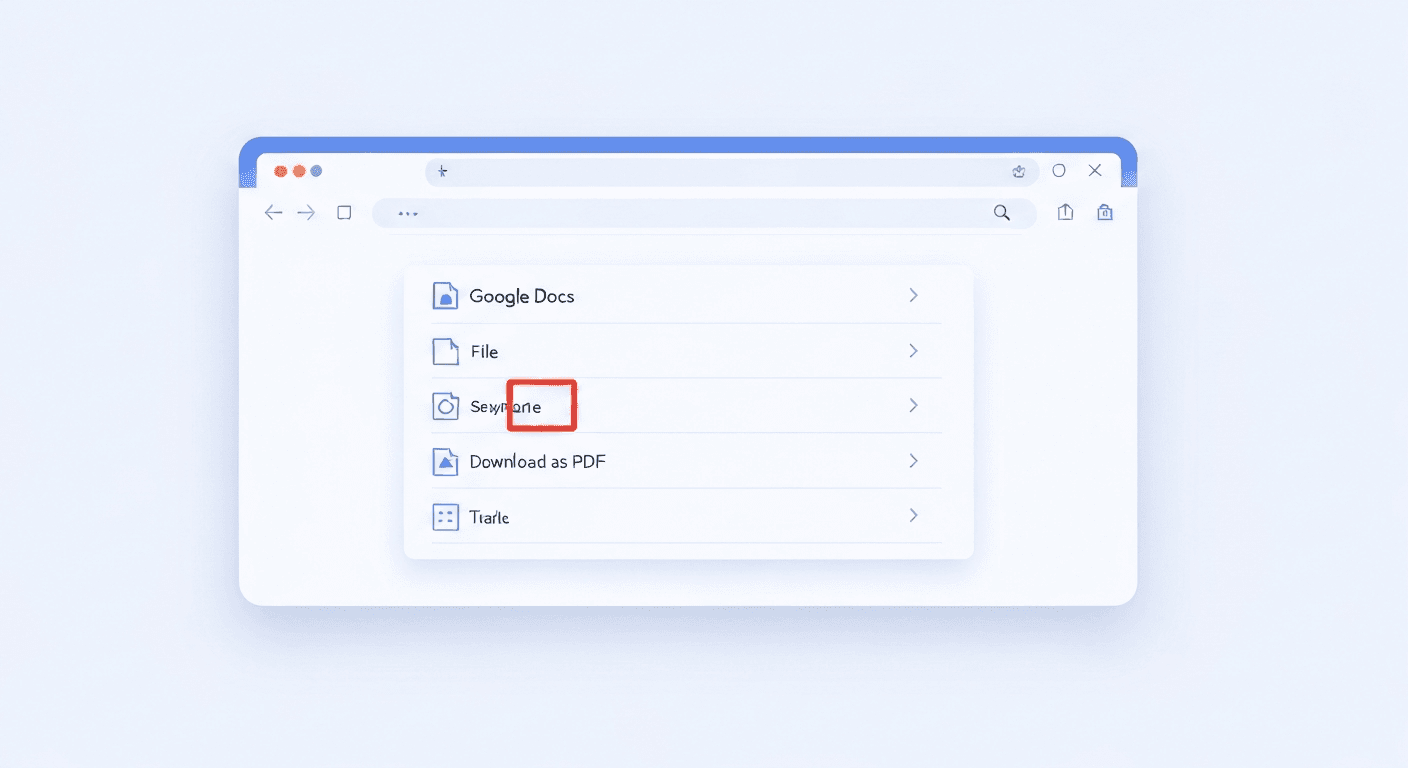
- 1Upload the PDF to Google Drive. Drag it into Drive or click the New button.
- 2Open it with Google Docs: right-click the PDF → Open with → Google Docs.
- 3Wait for conversion. Google Docs converts the PDF to an editable document. Images are rasterised, text is re-extracted.
- 4Download as PDF: File → Download → PDF Document (.pdf).
- 5Compare file sizes. Check if the result is actually smaller than the original.
Why Google Docs compression is unreliable
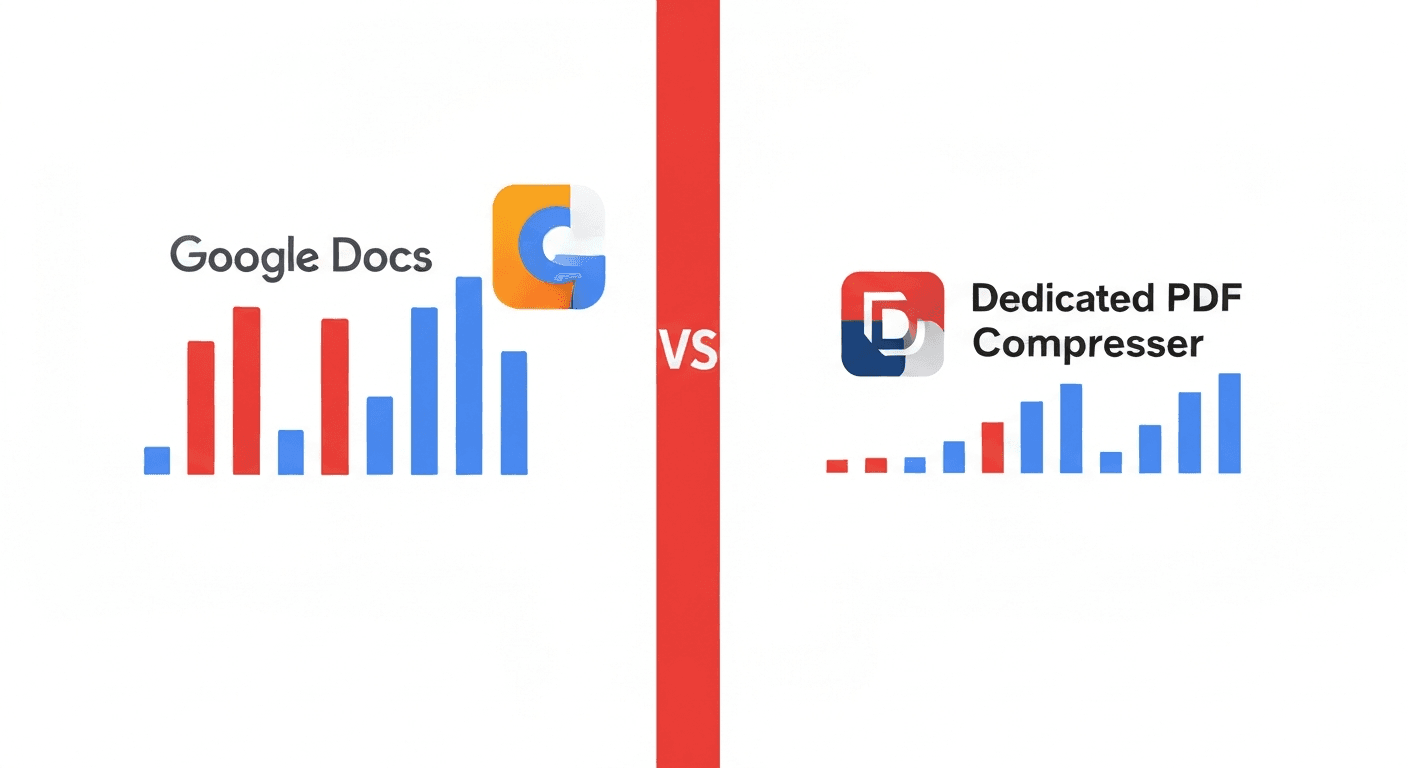
Google Docs is a word processor, not a PDF tool. When you open a PDF in Docs, it performs OCR to extract the text and re-renders the layout in its own format. When you export back to PDF, the result depends entirely on how well Docs re-rendered the document — not on any intelligent compression algorithm.
The process often changes fonts, breaks table layouts, loses headers and footers, and occasionally produces a file that is larger than the original because Docs re-embeds all resources from scratch. For a text-heavy document with no images, it might accidentally strip some metadata and come out slightly smaller — but this is a side effect, not a feature.
The reliable way to compress a PDF — free online
A proper PDF compression tool works by reducing embedded image resolution, applying lossless compression to all document objects, stripping unnecessary metadata, and optimising the internal PDF structure. None of this touches the document's layout or text content.
pdftoolz.io/tools/compress-pdf does all of this in one step: upload your PDF, choose compression level (Recommended for most files, Strong for maximum reduction), and download. The layout, text, and formatting are preserved exactly.
Frequently asked questions
QDoes Google Docs compress PDFs?
Not reliably. When you open a PDF in Google Docs and re-export it as PDF, the size may decrease, stay the same, or increase — depending on the document's content. It is not a compression process; it is a format conversion that happens to change the file size as a side effect.
QHow do I reduce PDF file size in Google Drive?
Google Drive itself has no compression feature. For reliable compression, download the PDF from Drive and use pdftoolz.io/tools/compress-pdf. Most PDFs can be reduced 50–90% in size while keeping the layout and text identical.
QWhat is the best free way to compress a large PDF?
Use a dedicated PDF compression tool like pdftoolz. It applies proper image optimisation and lossless compression algorithms designed for PDFs. For very large scanned documents, 'Strong' compression can reduce a 50 MB file to under 5 MB.
QWill compressing a PDF in Google Docs lose quality?
Yes — in the sense that layouts, fonts, and tables may change or break. The Docs method rasterises the document into a word processor format and back, which is inherently lossy for complex PDFs. A dedicated compressor reduces image resolution slightly but preserves all layout elements exactly.
QHow do I make a PDF smaller without losing quality?
Use pdftoolz.io/tools/compress-pdf with the 'Recommended' compression level. This reduces image resolution to screen-optimised levels (typically 150 DPI) without any visible quality loss at normal reading zoom levels. Vector graphics and text are untouched.