A common question from Google Workspace users: can you merge PDF files directly in Google Drive? The short answer is that Google Drive has no built-in 'combine PDFs' button. But you can still do it quickly using one of two methods — both free, both browser-based, and both covered below.
This guide also works if you are trying to combine PDF files in Google Docs, merge multiple Google Drive PDFs, or simply join two PDFs you have stored in the cloud without downloading any software.
Method 1 — Use a free online PDF merger (fastest)
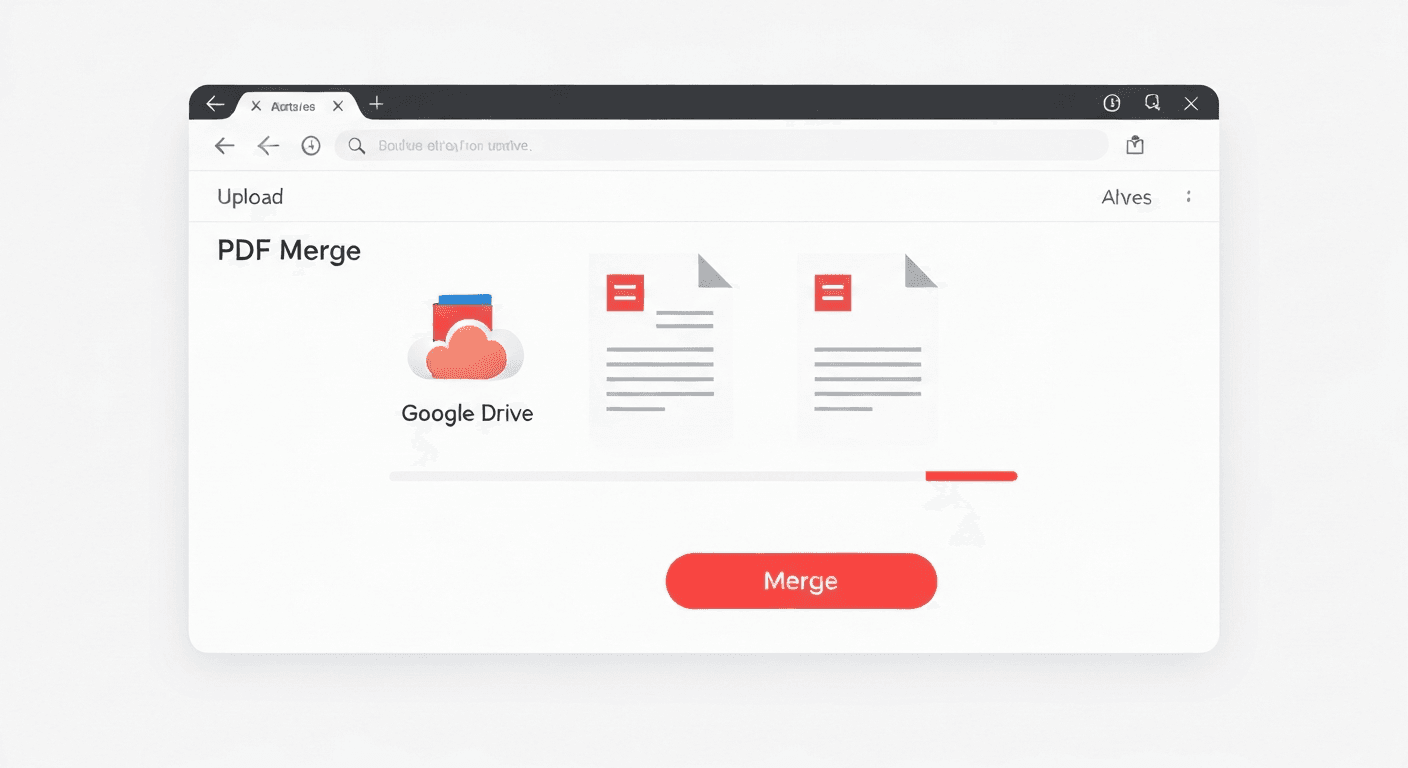
- Open pdftoolz.io/tools/merge-pdf in your browser.
- Click 'Upload' and select 'Google Drive' — or download the PDFs from Drive first and drag them onto the tool.
- Reorder the files by dragging them into the sequence you want.
- Click 'Merge PDF' and wait a few seconds.
- Download the combined PDF and optionally re-upload it to Google Drive.
Method 2 — Use Google Slides as a workaround
This method works without any third-party tool. The downside is that it converts your PDFs to images, which slightly reduces text sharpness.
- Open Google Drive and right-click the first PDF. Choose 'Open with → Google Slides'.
- Wait for import. Google Slides converts each PDF page into a slide image.
- Insert slides from the second PDF: In Slides, go to File → Import slides → Upload the second PDF. All its pages are added.
- Repeat for additional PDFs. Add as many as needed in this way.
- Export as PDF: Go to File → Download → PDF Document (.pdf). Your merged file downloads immediately.
Why Google Drive does not merge PDFs natively
Google Drive is a cloud storage and collaboration platform, not a PDF editor. It can preview PDFs, convert them via Google Docs, and share them — but direct PDF manipulation (merge, split, compress, rotate) is outside its scope by design. Google expects users to use Workspace integrations or third-party add-ons for these tasks.
For one-off tasks like merging a handful of PDFs, a dedicated free tool is faster and produces better output than the Slides workaround. If you regularly combine PDFs as part of a workflow, bookmarking a tool like pdftoolz saves you the extra steps every time.
Frequently asked questions
Frequently asked questions
QCan I merge PDF files directly in Google Drive?
Not natively. Google Drive has no built-in merge PDF feature. You can use Google Slides as a workaround (which converts pages to images) or use a dedicated free online tool like pdftoolz to combine your Drive PDFs without quality loss.
QHow do I combine two PDFs from Google Drive without downloading them?
Download the PDFs briefly, drag them into pdftoolz.io/tools/merge-pdf, merge, and re-upload the combined file to Drive. The whole process takes under a minute and the PDFs are deleted from our servers after 2 hours.
QDoes merging PDFs online preserve the original quality?
Yes — a proper PDF merger tool like pdftoolz combines documents at the structural level, preserving all text, images, fonts, and vector graphics at full quality. Only the Google Slides workaround reduces quality by converting pages to images.
QIs there a Google Drive add-on to merge PDFs?
Yes, the Google Workspace Marketplace has several PDF merge add-ons (such as PDF Mergy and DocHub). However, they require granting permissions to your Drive. For occasional merges, an independent online tool is simpler and does not require account access.
QCan I combine more than two PDFs at once?
Yes. The pdftoolz merge tool supports uploading multiple files at once. Drag all PDFs onto the tool, arrange them in the order you want, and merge everything in one step.